A practical guide to diagnosing and fixing common Mozilla VPN issues and getting back online quickly.
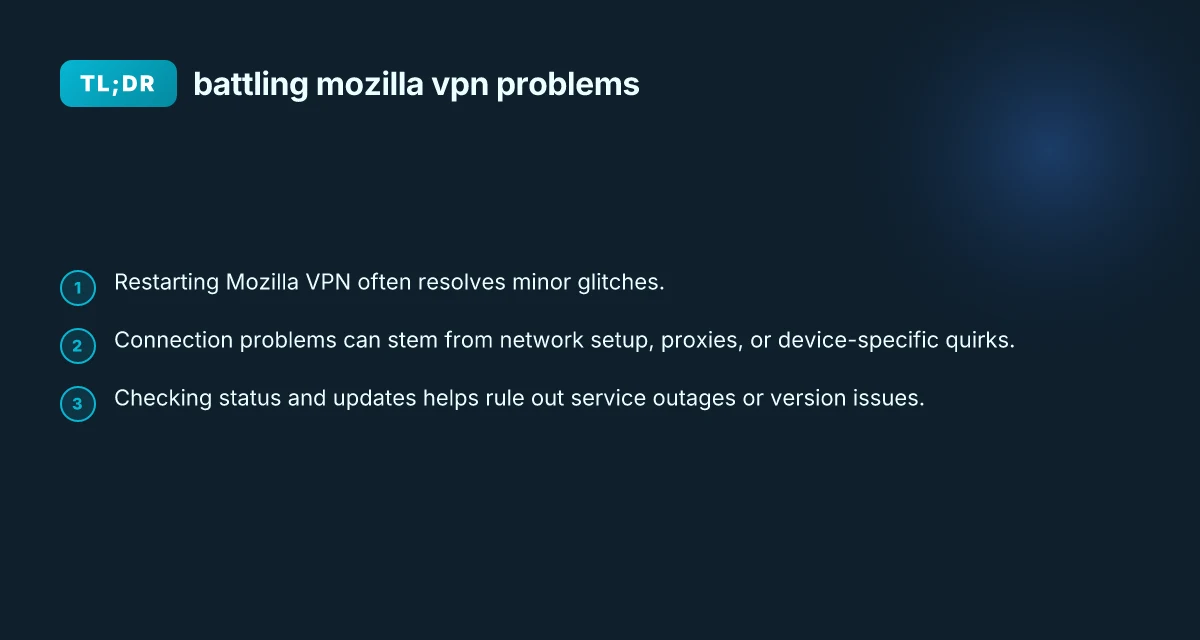
Mozilla VPN is a helpful tool for protecting your online activity, but like any software, it can run into hiccups. When you’re facing trouble connecting, staying productive or having trouble loading pages, a steady, methodical approach is your best friend. This guide walks you through common Mozilla VPN problems and practical steps to fix them, with a focus on quick wins and when to escalate.

Quick-start troubleshooting options comparison
| Step | Action | Typical outcome | Time to complete |
|---|---|---|---|
| 1 | Restart device | Often resolves issues | 2–5 min |
| 2 | Recheck basics | Confirms basics are correct | 1–3 min |
| 3 | Reconnect VPN | May restore connection | 1–3 min |
| 4 | Check ISP status | May reveal network block | 1–5 min |
Compiled November 2026; check the provider's site for current details.
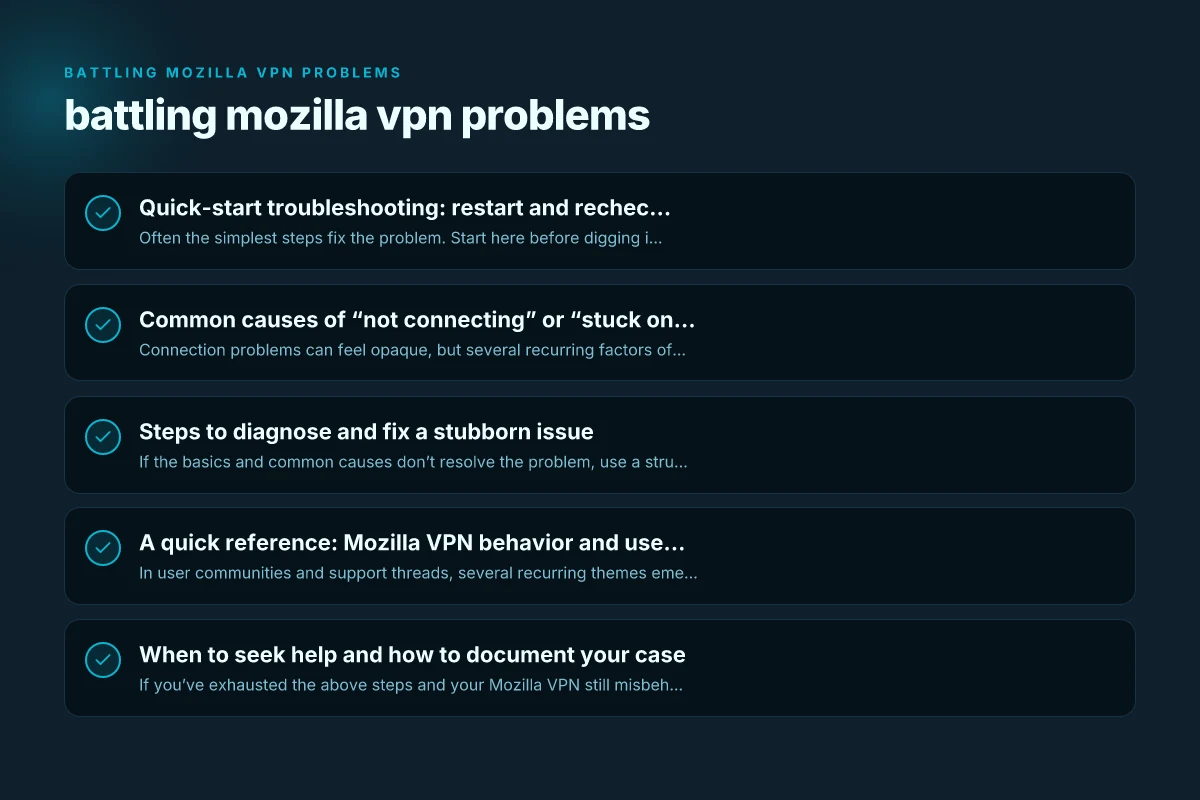
Quick-start troubleshooting: restart and recheck basics
Often the simplest steps fix the problem. Start here before digging into deeper settings.
- Restart the app: Close Mozilla VPN completely, then reopen it. If you’re on a mobile device, swipe it away from the recent apps list and relaunch.
- Check your internet connection: Make sure your general internet works outside the VPN. Try loading a webpage without the VPN first to confirm your baseline connectivity.
- Toggle the VPN off and on: Sometimes a clean disconnect and reconnect resolves stuck states.
- Reboot the device: A full reboot on Windows, macOS, Linux, iOS, or Android can clear temporary network glitches.
- Update the app: Ensure you’re running the latest Mozilla VPN version. Updates often include bug fixes related to connectivity.
If you follow these steps and your VPN still won’t connect or pages won’t load, move to more targeted checks.
Common causes of “not connecting” or “stuck on connecting”
Connection problems can feel opaque, but several recurring factors often explain the issue.
Network and router considerations
- Router/firewall settings: Some routers block VPN traffic. Ensure VPN ports aren’t being blocked and that UPnP is enabled if you rely on it.
- DNS conflicts: DNS settings can interfere with VPN routing. Try using a different DNS (e.g., Google DNS 8.8.8.8, Cloudflare 1.1.1.1) temporarily to test.
- Public Wi‑Fi limitations: Public networks may block VPN traffic. If possible, switch to a trusted network or use a mobile hotspot.
Device and OS quirks
- Battery-saver and VPN: Power-saving modes on mobile devices may throttle background VPN activity. Check power management settings and disable aggressive optimization when needed.
- Clock drift: If your device’s clock is significantly off, some VPN services fail authentication. Ensure the system time is accurate or set to sync automatically.
- Proxy/VPN conflicts: If you’ve previously configured a proxy, ensure the browser or OS proxy settings won’t override the VPN’s routing. Some per-application proxy configurations can conflict with Mozilla VPN.
Account and service status
- License/subscription: Verify your Mozilla VPN subscription is active and that you’re signed in with the correct account.
- Service status: Mozilla VPN, like any service, can experience outages. Check Mozilla’s status pages or third-party monitors for outages affecting your region.
Mixed network interfaces
- Multiple network adapters: If your device has several active network interfaces (Ethernet and Wi‑Fi, or VPN adapters), they can confuse routing. Try disabling unused interfaces or prioritizing the primary connection.
Common causes of “not connecting” or “stuck on connecting” – source vs impact
| Cause category | Likelihood | Impact on connection | Quick remedy |
|---|---|---|---|
| Network issue | High | Connection fail | Reboot router, switch networks |
| Server side outage | Medium | Stuck on connecting | Wait, check status pages |
| VPN app misconfig | Medium | No connection | Re-check settings, re-enter creds |
| Firewall/AV blocking | Medium | Stuck at connecting | Temporarily disable, whitelist |
| Location/Geography blocks | Low | Partial connection | Use alternative server |
Compiled November 2026; check the provider's site for current details. Sslvpn.poscoenc.com %e2%80%8b
Steps to diagnose and fix a stubborn issue
If the basics and common causes don’t resolve the problem, use a structured diagnostic flow.
- Verify status and version
- Check Mozilla’s official status page or a trusted outage monitor for live service issues.
- Confirm you’re on the latest Mozilla VPN version. If an update is available, install it and retry.
- Review recent changes: new router firmware, OS updates, or other network software can impact VPN behavior.
- Isolate the problem to the device or the network
- Try another device on the same network. If it works there, the issue is likely device-specific.
- Try the same device on a different network (mobile hotspot, another Wi‑Fi network). If it works on a different network, the original network settings or firewall may be at fault.
- Check routing and DNS
- Ensure that Mozilla VPN’s DNS settings aren’t being overridden by a separate DNS configuration.
- Clear DNS cache on the device (commands vary by OS) and reconnect.
- If available, switch DNS to a public option temporarily to test.
- Review app-specific settings
- Check kill-switch and leak protection settings: If misconfigured, they can cause traffic to be blocked unintentionally.
- Disable third-party extensions or security software momentarily to rule out interference.
- Reinstall the app: Uninstall Mozilla VPN, restart the device, then reinstall. This can clear corrupted configuration data.
- Test with a different protocol or server
- If Mozilla VPN offers multiple server locations or protocol options, try a different server or protocol to see if the problem is server-specific.
- Some connections perform better on certain servers due to congestion or routing.
- Collect logs for support
- If you reach Mozilla support or community forums, provide:
- Device and OS version
- Mozilla VPN app version
- Error messages or screenshots
- Steps you’ve already tried This helps expedite diagnosis.
A quick reference: Mozilla VPN behavior and user observations
In user communities and support threads, several recurring themes emerge. Understanding these can help you interpret what you’re seeing and decide where to focus your effort.
- “Unstable connection” vs. throttling: Some users report fluctuating performance. In some cases, this may be due to network throttling, server load, or routing variability. If you notice consistent slowness, try different servers or times of day.
- Built-in Firefox VPN vs. Mozilla VPN: There’s confusion between Firefox features and Mozilla VPN. The built-in Firefox VPN is a separate feature with different settings, including proxy-based routing. If you’re using Firefox’s feature and encountering issues, review proxy configurations in the browser as a separate step.
- Proxy-related troubleshooting: If you previously set proxy settings, those can affect Mozilla VPN’s behavior. Ensure proxy fields are cleared in both system-wide and browser-specific settings when necessary.
- Public outage events: Status monitors show outages from time to time. If several devices on multiple networks show issues, it’s likely a service-side problem and not your setup.
Table: quick comparison of typical troubleshooting focus
| Area | What to check | Typical impact | Quick fix ideas |
|---|---|---|---|
| Network status | Internet access, router | No connectivity or intermittent drops | Reboot router, test another network |
| VPN application | Version, reboot, reinstall | Stuck on connecting, errors | Restart, reinstall, update |
| Device settings | Time, DNS, proxies | Authentication or routing failures | Sync time, switch DNS, remove proxies |
| Security software | Firewall/AV rules | Traffic blocked by security software | Temporarily disable or whitelist VPN |
| Server/location | Server congestion | Slow or unstable connection | Change server location |
Steps to diagnose and fix a stubborn issue – decision flow
| Decision point | Action | Expected result | Next step if unresolved |
|---|---|---|---|
| Is device reachable? | Ping device | Yes/No | If No, fix device network |
| Can VPN connect to server? | Try different server | Works/Doesn’t | Switch server/diagnose network |
| Is kill-switch or split-tunneling affecting? | Review settings | Allowed/Blocked | Adjust rules |
| Are credentials valid? | Re-enter login | Accepted/Denied | Reset password |
| Any error code shown? | Note code | Code listed | Look up code in help |
Compiled November 2026; check the provider's site for current details. Hkmc-rndvpn hyundai net: What It Is and Why ZoogVPN Is a Strong Choice
When to seek help and how to document your case
If you’ve exhausted the above steps and your Mozilla VPN still misbehaves, don’t hesitate to reach out to support or community channels. The more precise your report, the faster others can help.
- Document your environment:
- Device type and OS version
- Mozilla VPN app version
- Network type (home Wi‑Fi, mobile data, public Wi‑Fi)
- Active security software and firewall settings
- Include a concrete failure description:
- Are you stuck on connecting? Do pages fail to load? Does the VPN disconnect abruptly?
- Do you see error codes or messages? If so, write them down exactly.
- Note any patterns:
- Does the issue occur only at certain times, with certain servers, or after a recent update?
- Share steps already tried:
- List the actions you took in order, including restarts, reinstalls, and DNS changes.
If you’re asking in forums, be mindful of the difference between Mozilla VPN and the browser’s built-in features. Clearly indicate which product you’re using, so others don’t confuse Mozilla VPN with Firefox’s own VPN-like tools.
Practical tips to keep Mozilla VPN reliable over time
- Schedule routine updates: Allow the app to auto-update or set reminders to check for updates after major OS changes.
- Maintain a clean network environment: Periodically reboot your router, clear the DNS cache, and verify that your firewall isn’t unintentionally blocking VPN traffic.
- Use one VPN at a time: Running multiple VPNs or VPN-like proxies simultaneously can create routing conflicts.
- Optimize server choice: If your work requires steady throughput, test a few servers during your typical usage window and pick the most reliable performer.
- Backup connection methods: For critical tasks, have a secondary connection method ready (mobile hotspot, another VPN, or a trusted network) in case Mozilla VPN is temporarily unavailable.
Final recommendation
Mozilla VPN is a solid choice for secure, private browsing, but like any network tool, it benefits from a patient, methodical troubleshooting approach. Start with the basics, restart the app, confirm your internet connection, and ensure you’re on the latest version. If problems persist, systematically check network settings, device-specific quirks, and service status. When you escalate to support, supply clear, concise diagnostics and a record of the steps you’ve already attempted. Most users recover a reliable VPN experience by following these steps, and many issues are resolved without heavy tinkering. If all else fails, remember that switching servers or temporarily testing on another device can help you determine whether the issue lives on the client, the network, or the service itself.