Practical steps to fix Edge when VPN isn’t working, plus a recommended VPN choice (ZoogVPN) for reliable protection.
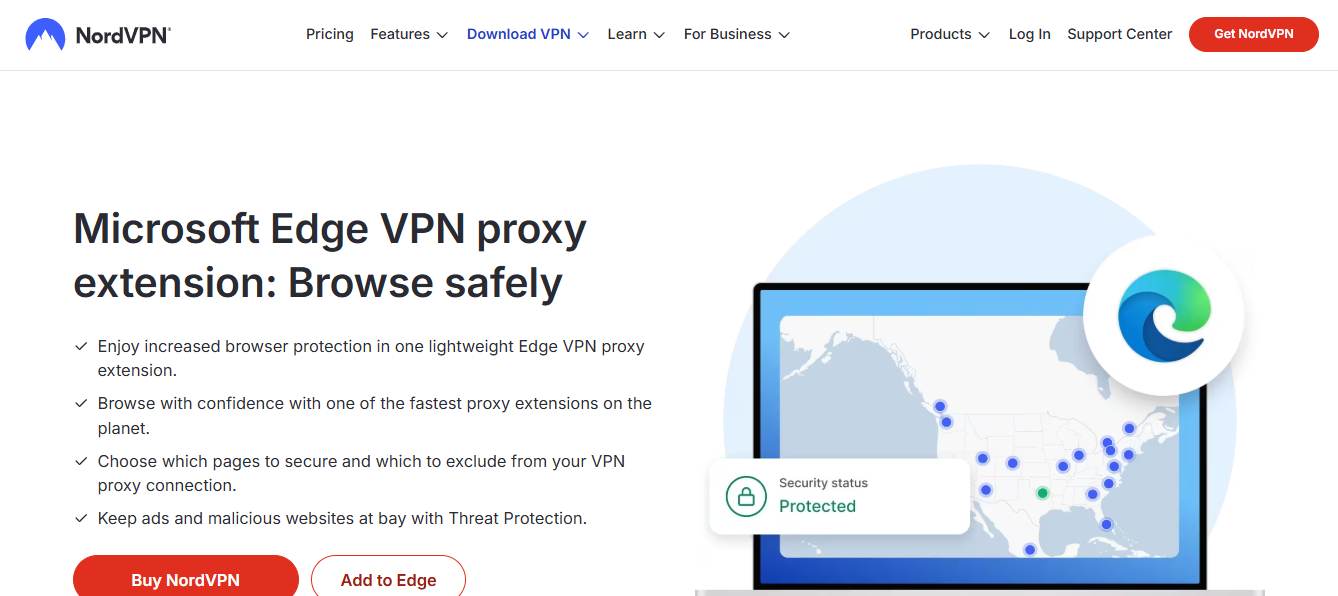
Edge not using VPN: what you need to know first If your VPN works in other apps but not in Microsoft Edge, you’re not alone. Edge has features and security settings that can interfere with VPN traffic. The result can be pages loading slowly, IP addresses not changing, or Edge showing you a “connected but not protecting” vibe. The good news is you can usually fix this with a few targeted tweaks. Below you’ll find practical steps, why they matter, and how to verify you’re protected when you browse in Edge.

Check your VPN status and plan limitations
Before diving into Edge-specific fixes, confirm the basics:
- Is your VPN connection showing as connected in the VPN app? Some providers have separate “tunnel” indicators for browser traffic vs. system-wide traffic.
- Do you have a compatible plan? Some VPN features (like split tunneling or browser-specific modes) are locked behind higher-tier plans.
- Is Edge allowed to route traffic through the VPN? Some firewall rules or antivirus suites can block VPN traffic on certain ports.
If you’re unsure, try a quick cross-check:
- Connect to a different server location and retry loading a site in Edge.
- Temporarily disable other security tools to see if they’re blocking VPN traffic in Edge.
- Test with another browser (Chrome or Firefox) to confirm the issue is Edge-specific.
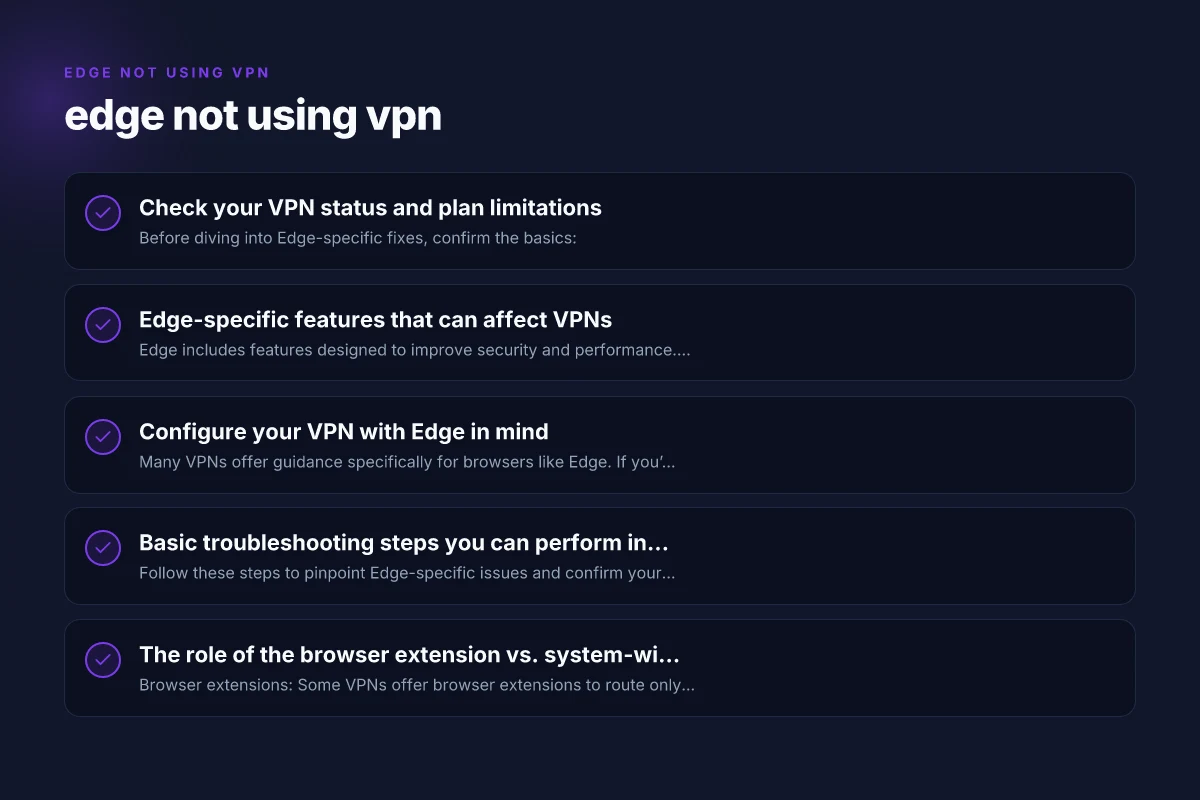
Edge-specific features that can affect VPNs
Edge includes features designed to improve security and performance. These can unintentionally clash with VPNs:
- Edge Secure Network (built-in VPN-like service) can conflict with third-party VPNs. If you enable Secure Network, try turning it off to see if your third-party VPN then routes traffic correctly.
- DNS over HTTPS (DoH) and DNS inside Edge can bypass or interfere with VPN DNS handling. If you enable DoH in Edge, your VPN’s DNS may not be used, depending on the provider.
- Extensions and site permissions: some Edge extensions can inadvertently bypass VPN by routing select traffic directly or by leaking DNS.
What to do:
- Disable Edge’s Secure Network feature temporarily to test VPN routing. If your VPN works after disabling, you’ll know the built-in service was the culprit.
- Check Edge settings for DoH. If DoH is enabled, try turning it off, or configure your VPN to handle DNS resolution.
- Review installed extensions that touch networking or privacy, and disable them one by one to identify conflicts.
Configure your VPN with Edge in mind
Many VPNs offer guidance specifically for browsers like Edge. If you’re using a popular service (including ZoogVPN), the following practices generally help: How to uninstal nord VPN that want use built in uninstaller
- Use a system-wide VPN connection rather than a browser-only mode. Edge shares the OS-level network stack with other apps, so a true system-wide VPN ensures Edge traffic is also encrypted and routed.
- Enable “split tunneling” if your VPN supports it, and set Edge traffic to go through the VPN while non-essential apps stay on the regular connection. If you don’t need everything routed through the VPN, this keeps performance up.
- Verify the VPN’s DNS configuration. In many cases, the VPN provides its own DNS servers. Ensure Edge isn’t inadvertently using your ISP’s DNS by checking Edge’s DNS settings and your VPN DNS configuration.
- Update both Edge and the VPN app. Compatibility helps. If either side is out of date, bugs can appear as VPN failures.
Basic troubleshooting steps you can perform in Edge
Follow these steps to pinpoint Edge-specific issues and confirm your VPN is protecting you:
- Clear Edge cache and cookies for a clean session. Sometimes stale data misleads you about your IP.
- Reset Edge settings to default if problems persist. This helps rule out misconfigurations that block VPN traffic.
- Check for vulnerable extensions. Disable or remove extensions that may interfere with network traffic and try again.
- Manually test IP location. With a site like ipinfo.io, verify your IP shows the VPN’s location after connecting, then switch to a non-VPN IP to confirm the change when you toggle VPN on/off.
Table: Edge issues vs. fixes (quick reference)
| Issue | Common cause | Fix | Result |
|---|---|---|---|
| Edge shows real IP while VPN connected | Edge Secure Network or DoH interference | Turn off Edge Secure Network; disable DoH; verify DNS settings | VPN-protected traffic in Edge |
| VPN connects but pages fail to load | DNS leaks; IP routing not using VPN | Ensure system-wide VPN; set DNS to VPN; test different DNS options | Stable browsing through VPN |
| Edge extension blocks VPN | Security extensions or blockers | Disable extensions one by one; leave only essential ones | VPN traffic flows again |
| IP leakage when Edge is active | WebRTC leaks; browser DNS still public | Disable WebRTC leaks in Edge; use VPN with WebRTC protection; force VPN DNS | No IP leakage from Edge |
The role of the browser extension vs. system-wide VPN
- Browser extensions: Some VPNs offer browser extensions to route only the browser’s traffic. In Edge, a browser extension may not cover all traffic, leading to inconsistent protection.
- System-wide VPN: For reliable protection in Edge, a system-wide VPN is usually best. It tunnels all network traffic, including Edge, background processes, and apps, so you don’t rely on how a specific browser handles traffic.
Why this matters:
- Edge-specific protections, when misconfigured, can create a false sense of security. If you’re using a browser extension alone, you may still have traffic unprotected outside Edge or during background tasks.
Why ZoogVPN is a strong choice for Edge users
If you’re evaluating options or looking for a dependable VPN to use with Edge, consider ZoogVPN:
- System-wide protection: ZoogVPN typically runs at the system level, ensuring Edge and other applications are covered.
- Server coverage: A broad set of servers can help bypass region-based blocks and avoid IP leakage caused by shared endpoints.
- DNS protection: ZoogVPN usually directs DNS requests through its own resolvers, reducing DNS leaks for Edge sessions.
- Easy setup: The client is designed to be user-friendly, with straightforward connection toggles and clear status indicators.
A quick setup guide for ZoogVPN with Edge: Does NordVPN split tunnelling work on an iPhone
- Install ZoogVPN on your Windows device.
- Open the ZoogVPN app and connect to a server location of your choice.
- If Edge Secure Network is present, disable it to prevent conflicts.
- In Edge, ensure DoH is disabled if you’re using ZoogVPN’s DNS.
- Open ipinfo.io to verify your location shows the VPN server’s location and that the IP is not your ISP-assigned address.
- If you experience issues, switch server locations or restart both ZoogVPN and Edge.
Troubleshooting checklist you can use today
- Confirm the VPN app shows your connection as active.
- Disable Edge Secure Network temporarily and test again.
- Disable DoH in Edge if your VPN handles DNS.
- Ensure you’re using a system-wide VPN connection rather than a browser-only extension.
- Check for conflicting extensions or security software and temporarily disable them.
- Try a different server location to rule out server-specific issues.
- Verify DNS leakage protection is enabled in the VPN (and, if needed, in Edge’s settings).
- Update Edge and ZoogVPN to the latest versions.
Final recommendations
If you frequently use Edge and want to ensure reliable, private browsing, a system-wide VPN that plays well with Edge is essential. ZoogVPN is a solid option to consider. It tends to provide straightforward setup, reliable DNS handling, and broad server coverage, which helps prevent the common Edge-specific VPN headaches. Start with a ZoogVPN trial or plan that suits your usage, confirm Edge doesn’t have conflicting built-in features enabled, and test across different sites to ensure protection remains consistent.
If you’d like, I can tailor these steps to your exact Windows version and Edge build, or walk you through a step-by-step setup with ZoogVPN on your device.
| VPN | Obfuscation | From / month | Plan | Free plan | Refund | Alipay | UnionPay | Crypto | Website opens in China | Trustpilot | |
|---|---|---|---|---|---|---|---|---|---|---|---|
 ZoogVPN | Turn on manually Shadow | $2.49/mo | 27 months: $59.99 | Yes | 7 days | ✓ | ✓ | ✓ | ✓ | ✓ Yes (2.5 s) | 4.2/5 (195 reviews) |
 NordVPN | Turn on manually Obfuscated Servers / NordWhisper | $3.49/mo | 27 months: $94.23 | No | 30 days | ? | ✗ | ✓ | ✓ | ✗ Blocked | 4.2/5 (51,628 reviews) |
 ExpressVPN | ✓ On by default all servers | $3.00/mo | 28 months: $84 | No | 30 days | ✗ | ✗ | ✓ | ✗ | ✗ Blocked | 4.4/5 (29,706 reviews) |
 Surfshark | ✓ On by default Camouflage, with OpenVPN | See site | See site | No | 30 days | ✗ | ✗ | ✗ | ✓ | ✗ Blocked | 4.3/5 (31,823 reviews) |
 Proton VPN | Turn on manually Stealth, free plan too | $2.99/mo | 12 months: $35.88 | Yes | 30 days | ✗ | ✗ | ✗ | ✓ | ✓ Yes (2.5 s) | 2.1/5 (1,040 reviews) |
 Astrill VPN | Turn on manually StealthVPN / OpenWeb | $12.50/mo | 24 months: $300 | No | See site | ✗ | ✗ | ✗ | ✓ | ✗ Blocked | 1.3/5 (110 reviews) |
 Private Internet Access | Turn on manually Shadowsocks, OpenVPN only | $2.03/mo | 40 months: $81.2 | No | 30 days | ✗ | ✗ | ✗ | ✗ | ✗ Blocked | 4.2/5 (11,033 reviews) |
 CyberGhost | Turn on manually selected servers | $2.19/mo | 28 months: $61.32 | No | 45 days | ✗ | ✗ | ✗ | ✓ | ✗ Blocked | 4.0/5 (24,178 reviews) |
 PureVPN | Turn on manually switch to OpenVPN | $1.69/mo | 60 months: $101.55 | No | 31 days | ? | ✗ | ✗ | ✓ | ✓ Yes (2.6 s) | 4.4/5 (17,994 reviews) |
 AdGuard VPN | ✓ On by default TrustTunnel | $2.99/mo | 24 months: $71.76 | Yes | 30 days | ✓ | ✗ | ✓ | ✓ | Official site blocked; our special link opens (2.3 s) | 4.3/5 (290 reviews) |
 Mullvad | Turn on manually QUIC / Shadowsocks / LWO | $5.61/mo | €5/mo | No | 14 days | ✗ | ✗ | ✗ | ✓ | ✗ Blocked | 3.2/5 (192 reviews) |
 Windscribe | Turn on manually Stealth / WStunnel | $5.75/mo | 12 months: $69 | Yes | See site | ✗ | ✗ | ✗ | ✓ | ✗ Blocked | 4.7/5 (13,355 reviews) |
 StrongVPN | Turn on manually Scramble, OpenVPN TCP | See site | See site | No | 30 days | ✓ | ✗ | ✗ | ✗ | ✗ Blocked | 4.4/5 (2,695 reviews) |
 LightXtreme 闪连 | Not listed | $7.08/mo | 12 months: $84.99 | Yes | 30 days | ✓ | ✓ | ✓ | ✓ | ✓ Yes (2.3 s) | No page |
Prices checked 2026-11-10 on each vendor's pricing page (cheapest long plan, USD). Check the vendor's checkout for the final price.
Obfuscation checked 2026-11-14 on each vendor's site and help center: "on by default" = nothing to set; "turn on manually" = switch protocol or mode in settings; "not listed" = the vendor describes no obfuscation.
Payment methods checked 2026-11-10 on each vendor's payment pages: all 14 take cards and PayPal; ✗ = not listed, ? = the vendor's own pages disagree.
China access: whether the official website opens from mainland China networks (tests the website only, not the VPN connection). Last checked 2026-11-11 04:07 Beijing time.
Trustpilot score and review count checked 2026-11-10.