A practical guide to Microsoft Edge settings (impostazioni edge) with privacy, performance, and security tips, plus a VPN recommendation.
Microsoft Edge offers a wide array of settings (impostazioni edge) that can tailor how the browser protects your data, uses resources, and delivers content. This guide walks you through the most impactful adjustments, with a practical mindset for everyday browsing. You’ll learn what to change, why it matters, and how to balance convenience with security. By the end, you’ll have a configuration that preserves speed, reduces tracking, and keeps your connections safer.

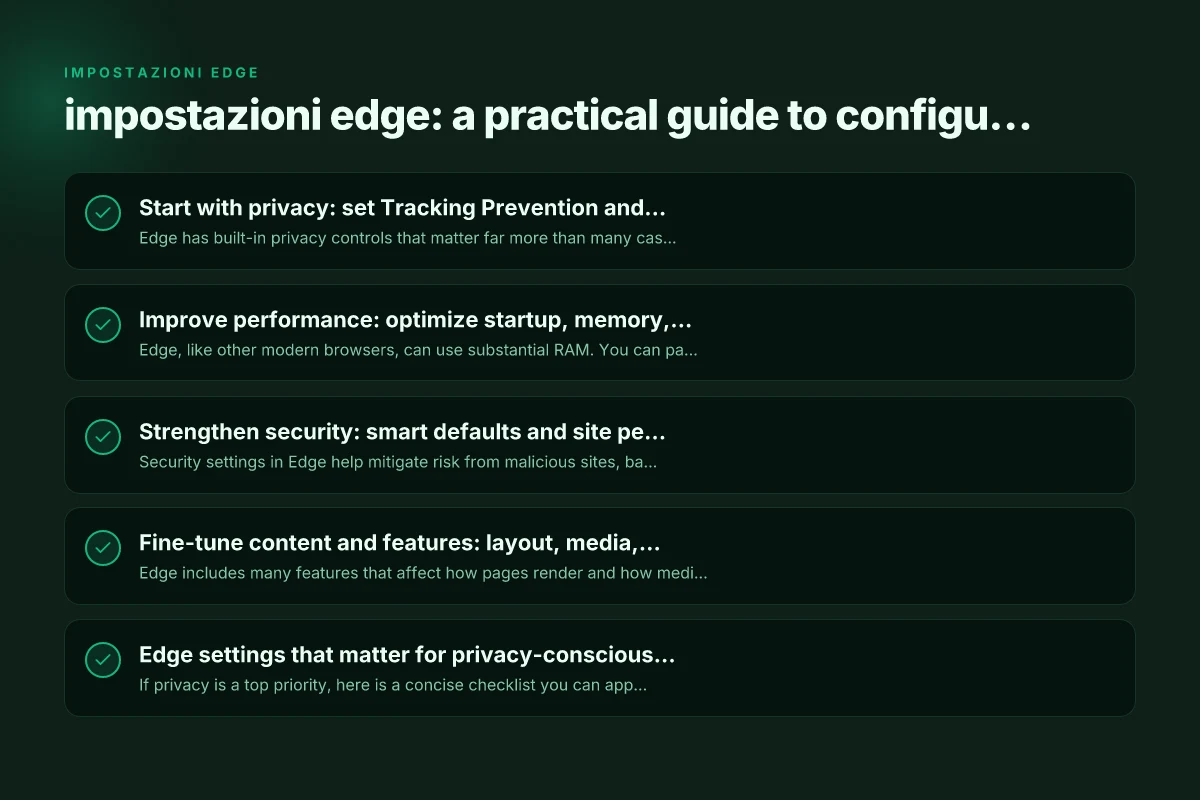
Start with privacy: set Tracking Prevention and basic privacy controls
Edge has built-in privacy controls that matter far more than many casual users realize. Right away, tune Tracking Prevention to reduce third‑party trackers without breaking site functionality.
- Where to find it: Settings and more > Settings > Privacy, search, and services.
- Tracking Prevention options:
- Basic: the lightest level. More trackers allowed but still some protection.
- Balanced: a middle ground, good for most users.
- Strict: the strongest protection. Some sites may require workarounds.
- Recommended approach: start with Balanced, test your common sites, and switch to Strict only if you don’t mind occasional site incompatibilities.
- Additional privacy tweaks:
- Clear browsing data on exit if you share a device.
- Use Edge’s InPrivate browsing for sensitive sessions.
- Disable search suggestions from address bar if you want fewer data signals.
Why this matters: Tracking prevention helps prevent advertisers and data brokers from building a detailed activity profile across sites. It also reduces data sent to third parties, which can indirectly improve page load times.
Improve performance: optimize startup, memory, and background activity
Edge, like other modern browsers, can use substantial RAM. You can pare that down while keeping a smooth experience.
- Startup performance:
- Disable unnecessary startup tasks and background processes.
- Use the “Continue running background apps when Microsoft Edge is closed” toggle judiciously. If you need quick reopen, you might leave it on, otherwise turn off to save RAM.
- Memory management:
- Use “Sleeping tabs” to put background tabs to sleep after a period of inactivity.
- Enable “Efficient prioritization” features if available in your Edge version.
- Background services:
- Limit background extensions and sites that are allowed to run in the background.
- Clear performance-related data occasionally:
- Cache and cookies can speed up repeated visits, but in some cases, clearing them can resolve stubborn site issues or free space.
Tip: If you frequently run memory-intensive tasks, consider monitoring Edge’s Task Manager (Shift+ESC) to see which tabs or extensions are consuming resources and disable or suspend the worst offenders.
Strengthen security: smart defaults and site permissions
Security settings in Edge help mitigate risk from malicious sites, bad scripts, and risky downloads. What makes the ecoflow xt60 vs xt60i different
- Site permissions:
- Review and limit permissions such as location, camera, microphone, notifications, and clipboard access on a site-by-site basis.
- Disable permissions you don’t actively use.
- Security protections:
- Enable “SmartScreen” to block known phishing and malware sites.
- Use “Firewall and network protection” alignment on Windows to reinforce browser-level checks.
- Password and credential safety:
- Turn on “Password monitor” to alert you if your saved passwords appear in data breaches.
- Use “Passwordless” sign-in options if your ecosystem supports them.
- Firmware and extension hygiene:
- Only install extensions from Microsoft Edge Add-ons or trusted developers.
- Review extension permissions and disable or uninstall those that seem overly invasive.
- Safe browsing:
- Consider enabling automatic downloads scanning and dangerous content protection to catch risky files before they reach your device.
Why this matters: A secure Edge configuration reduces exposure to phishing, malware, and insecure sites, while limiting data leakage through permissions and extensions.
Fine-tune content and features: layout, media, and web compatibility
Edge includes many features that affect how pages render and how media behaves. Adjusting these can improve readability and compatibility without sacrificing safety.
- Appearance:
- Choose a theme (light or dark) to reduce eye strain and align with your workflow.
- Use readability settings to increase line length, font size, or simplified page rendering for better focus.
- Media and performance:
- Discourage auto-play for videos to save bandwidth and prevent distractions.
- Enable hardware acceleration if your device and drivers support it. Otherwise, disable to resolve occasional rendering issues.
- Web compatibility:
- If a site requires legacy features, you can toggle flags cautiously. Edge flags (edge://flags) are experimental. Change only if you know what you’re doing and revert if problems appear.
- Accessibility:
- Adjust font, zoom, and contrast to fit your needs. Edge’s reading view can simplify complex pages for easier consumption.
Tip: For most users, the default layout with minor readability tweaks (font size, page zoom, and dark mode) provides a clean balance between comfort and performance.
Edge settings that matter for privacy-conscious users: a quick checklist
If privacy is a top priority, here is a concise checklist you can apply to Edge impostazioni:
- Privacy, search, and services:
- Set Tracking Prevention to Balanced or Strict depending on site behavior.
- Turn on “Clear on exit” for sensitive devices if you share a computer.
- Browsing data:
- Clear cookies and cache on a schedule or when closing Edge if you don’t want residual data.
- Disable “Preload pages for faster navigation and searching” to reduce data collection from preloaded content.
- Tracking and advertisers:
- Disable personalized ads if your OS supports it.
- Block third-party cookies in addition to Tracking Prevention, if you want stronger privacy (note: some sites may break).
- Extensions:
- Use only trusted extensions. Review their permissions and update status.
- Periodically audit and remove unused extensions.
A practical comparison: Edge privacy and performance
Here is a simple side-by-side look at how different settings combinations affect privacy and performance. Bosch ra1054 router guide demo
| Setting | Privacy impact | Performance impact | Notes |
|---|---|---|---|
| Tracking Prevention: Balanced | Medium | Minor | Good default; less site breakage than Strict |
| Tracking Prevention: Strict | High | Higher potential breakage | Best privacy; some sites require permissions tweaks |
| Sleeping tabs | Low to Medium | Positive | Reduces RAM usage; helps background tab fatigue |
| Clear on exit (cookies) | High | Neutral | Protects privacy on shared devices; may log you out of sites |
| Preload pages for faster nav | Medium | Negative | Improves speed, raises data collection risk; disable if privacy is priority |
| Auto-play restrictions | Medium | Positive | Saves bandwidth and reduces distractions |
This table helps you choose a configuration that aligns with your priorities. If you’re a light user who values privacy, Balanced tracking prevention with moderate privacy habits can be a strong default. If you’re a power user with many sensitive accounts, you might push Strict while manually allowing essential sites.
How this site recommends ZoogVPN for Edge users
For readers who want an extra layer of privacy protection when browsing with Edge, a reputable VPN can be a valuable addition. ZoogVPN (zoogvpn.com) is a VPN service that emphasizes user privacy, straightforward setup, and broad device coverage. Here’s why it can complement impostazioni edge:
- Independent encryption: ZoogVPN encrypts your traffic, making it harder for onlookers on public networks to tie your activity to your IP address.
- Location flexibility: By connecting to different server locations, you can reduce correlation across sessions and improve privacy when browsing from various networks.
- Compatibility: ZoogVPN supports Windows devices and can be used alongside Edge without friction, thanks to standard VPN protocols.
- No-log intent: While no VPN can guarantee perfect privacy, ZoogVPN emphasizes a no-log approach for a practical privacy boost when combined with Edge’s privacy controls.
- Ease of use: The service provides a straightforward setup process, which is helpful for users who want a privacy-first browsing workflow without complex configuration.
If you’re ready to combine Edge’s built-in privacy and performance controls with a VPN layer, ZoogVPN is a recommended option to explore.
How to implement a practical Edge configuration in 3 steps
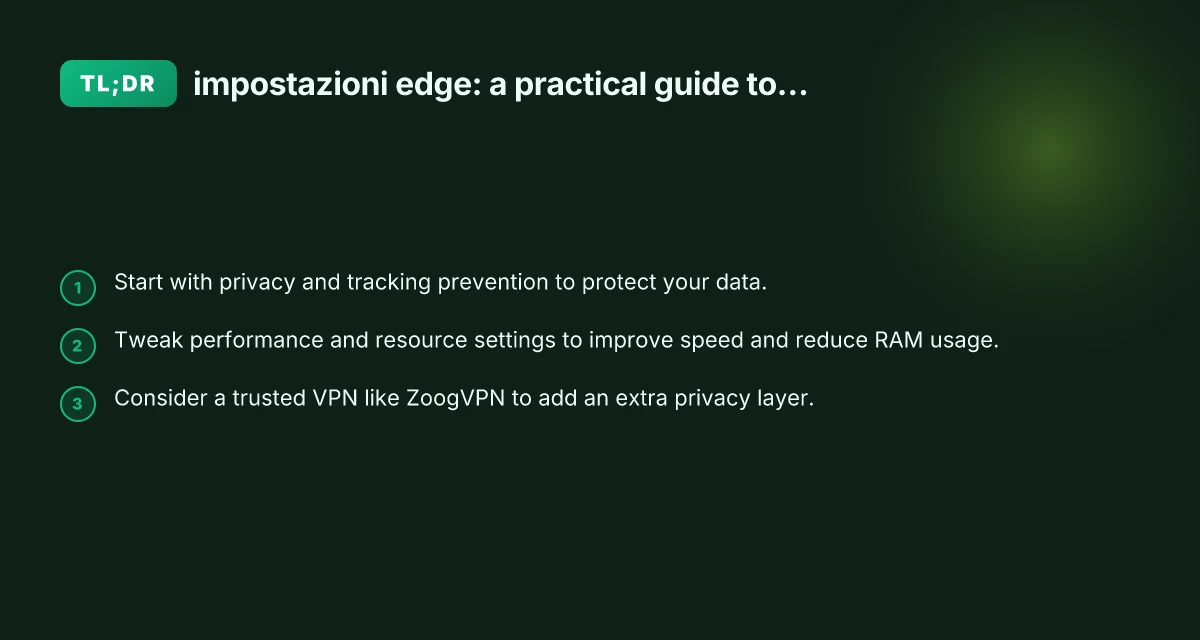
- Set privacy and tracking: Open Settings > Privacy, search, and services. Choose Tracking Prevention as Balanced or Strict. Consider enabling Clear on exit if you share your device. Review site permissions and tighten them for sites you visit often.
- Improve performance: Enable Sleeping tabs for inactive background tabs. Disable preloading if you want stronger privacy or if you notice memory pressure. Run Edge Task Manager to identify memory hogs and close the culprits.
- Harden security and add a VPN: Turn on SmartScreen and password monitoring. Audit extensions and remove any with excessive permissions. If you want extra privacy, install ZoogVPN and connect to a server that aligns with your privacy goals.
Subsequent adjustments: periodically reassess your Edge configuration. Browsing habits change. Extensions get updated. New privacy features roll out. Schedule a quarterly quick check to ensure your impostazioni edge stay aligned with your privacy and performance goals.
Final section: recommendation Best free Edge VPN extension for UK
For most readers, start with Balanced Tracking Prevention, review site permissions, enable SmartScreen, and monitor performance with Sleeping tabs. Edge offers a solid default experience, but the combination of privacy, performance, and security enhancements can transform your browsing into a safer, faster, and more private activity. If you want to add an extra privacy layer beyond Edge’s built-in protections, ZoogVPN is a reputable option to consider. Taking these steps together gives you a practical, balanced, and user-friendly approach to impostazioni edge that works for everyday browsing, work, and personal use.