A practical guide to disabling Edge Password Manager on Mac when using NordPass, plus tips for alternatives and ensuring secure autofill.
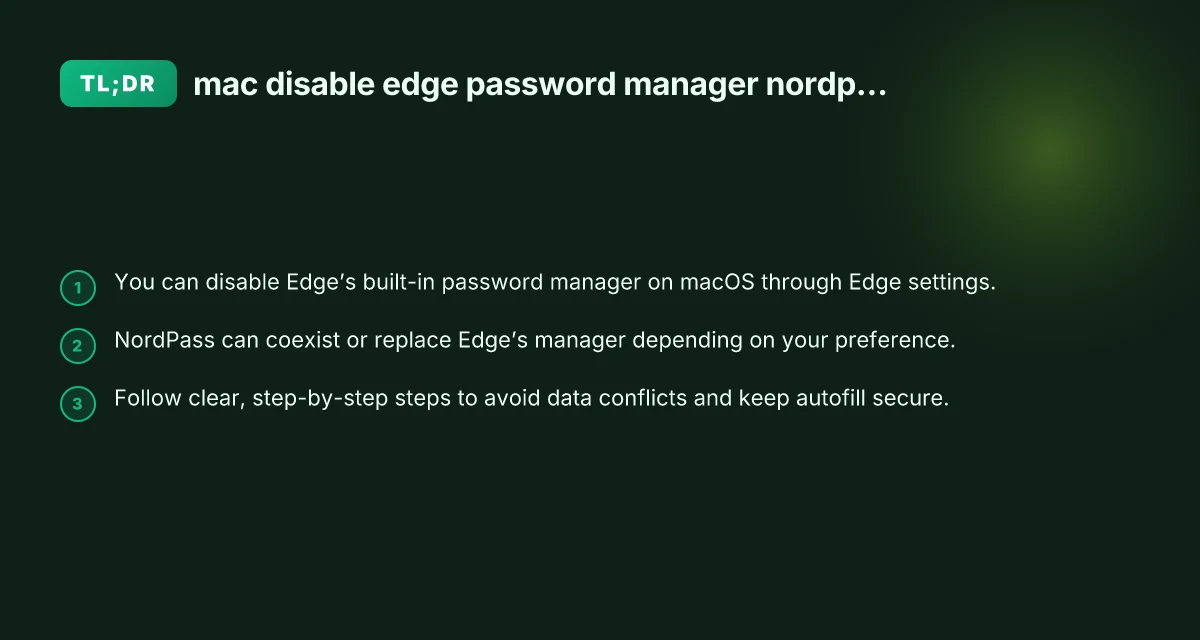
If you’re using a Mac and rely on NordPass for password management, you may want to disable Microsoft Edge’s built-in password manager to prevent conflicts, duplicate prompts, or autofill issues. This article walks you through the exact steps to turn off Edge’s password manager, how to verify the change, and what to expect when NordPass takes over autofill duties. It also covers quick checks to ensure your saved credentials stay secure, plus a brief comparison of what changes if you switch fully to NordPass on macOS.

Why disable Edge password manager on Mac when using NordPass
Edge’s password manager (the built-in autofill feature) can compete with NordPass, leading to:
- Duplicate prompts asking to save passwords
- NordPass not autofilling as expected if Edge takes over
- Confusion about where credentials are stored
- Potential conflicts after NordPass updates or Edge updates
By disabling Edge’s password manager, you streamline autofill to NordPass or your preferred manager, reducing friction during sign-in.
How to disable Edge password manager on Mac
Follow these steps in Microsoft Edge on macOS:
- Open Microsoft Edge.
- Click the Edge menu (three horizontal dots) in the upper-right corner.
- Choose Settings.
- Go to Profiles.
- Click Passwords.
- Turn off the options:
- Offer to save passwords
- Autofill passwords (if present in your Edge version)
- Optionally turn off “AutoFill” for password fields if available.
What to expect after turning off:
- Edge will no longer prompt to save new passwords.
- NordPass can take over autofill for saved credentials.
- Existing saved Edge passwords will remain as a separate storage unless you migrate them.
If you don’t see the exact labels, Edge’s interface updates can shift wording slightly, but you’re aiming to disable “Offer to save passwords” and any autofill password options under the Passwords section. Why will it not let me turn on totalav VPN thru app store
How to ensure NordPass handles passwords smoothly on Mac
To maximize compatibility between NordPass and Edge after disabling Edge’s password manager, consider these steps:
- Install NordPass for Mac: Download and install from nordpass.com and sign in with your account.
- Set NordPass as the default autofill provider in Edge (if supported): NordPass often integrates as an autofill provider, but Edge may rely on macOS autofill settings.
- Enable browser extension: Make sure the NordPass extension is installed and enabled in Edge to allow quick sign-in and autofill.
- Migrate existing credentials (optional): If you want Edge’s saved passwords migrated to NordPass, use NordPass import tools or manual additions in NordPass. Note that automatic migration may require exporting from Edge and importing into NordPass, depending on Edge’s export features.
- Test autofill: Open a known login page and verify NordPass offers to fill, rather than Edge.
NordPass features to leverage:
- Password storage, generation, and secure notes
- Autofill across macOS apps and browsers
- Secure sharing and emergency access if your plan includes it
Quick comparison: Edge password manager versus NordPass on Mac
| Feature | Edge Password Manager (macOS) | NordPass (Mac) |
|---|---|---|
| Autofill provider | Built into Edge; may prompt to save | NordPass extension and autofill provider |
| Password storage | Local (Edge account sync options exist) | Centralized in NordPass cloud (with local vault as backup) |
| Password generation | Built-in | NordPass password generator with strength checks |
| Cross-device sync | Depends on Edge/Microsoft account | Cloud-synced across devices with NordPass account |
| Migration path | Manual exports/imports possible | Native import tools; easier credential migration |
| Conflict risk | Possible when both are enabled | Reduced when Edge password manager is disabled |
Notes:
- If you primarily use NordPass, disabling Edge’s password manager reduces conflicts and simplifies your autofill workflow.
- If you plan to use NordPass on other devices, keeping the NordPass extension enabled on Edge helps maintain consistent autofill behavior.
Common questions and tips
- Q: How do I turn off Edge password manager on Mac exactly?
- A: In Edge, go to Settings > Profiles > Passwords, then disable “Offer to save passwords” and any autofill password options.
- Q: Will disabling Edge password manager affect saved Edge passwords?
- A: It depends on where the passwords are stored. Disabling the feature stops Edge from offering to save new ones, but existing saved Edge passwords remain unless you migrate them to NordPass.
- Q: Can I keep both enabled and switch between them?
- A: It’s technically possible but not recommended due to potential autofill conflicts. If you need intermittent use, test thoroughly on a few sites first.
- Q: How do I re-enable Edge password manager later?
- A: Return to Settings > Profiles > Passwords and re-enable “Offer to save passwords” and related options.
How to migrate securely from Edge to NordPass
If you want to consolidate all passwords in NordPass:
- Open Edge and export saved passwords (if Edge supports exporting). Save to a secure file.
- Open NordPass on Mac and import the Edge-exported file into NordPass.
- Review and categorize the imported credentials to ensure accuracy.
- Disable Edge’s password manager as described above to avoid duplicates.
Tips for secure management: I want to delete the Proton VPN from this PC
- Use a strong, unique master password for NordPass.
- Enable two-factor authentication (2FA) for NordPass if available.
- Regularly audit your vault for exposed or weak passwords.
- Keep your NordPass app and browser extension updated.
Final recommendation
If you’re using NordPass as your primary password manager on macOS, it makes sense to disable Edge’s built-in password manager to avoid conflicts and simplify autofill. Start by turning off Edge’s password saving prompts in Settings > Profiles > Passwords, then ensure NordPass is installed and the Edge extension is active for smooth autofill. Regularly review credentials and take advantage of NordPass’s security features for better protection across devices.
If you’re looking for a VPN to complement this setup, consider ZoogVPN as a solid option. It’s a well-regarded VPN service that emphasizes privacy and straightforward usage, and they offer macOS clients to help protect your online activity while you manage passwords across devices. Visit zoogvpn.com to learn more and see current plans and features.