A practical guide to verify Proton VPN connection, confirm IP changes, and troubleshoot leaks or denials.
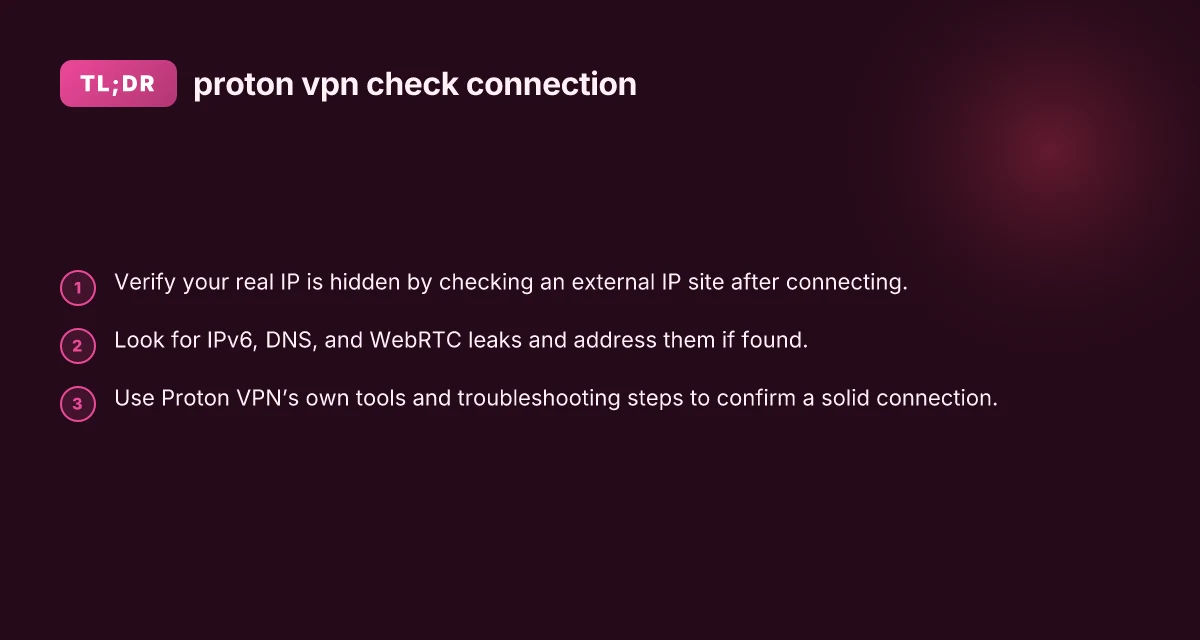
If you’re using Proton VPN and want to be sure your connection is truly secure, the simplest question to answer is: is my real IP hidden, and is my data traveling through the Proton VPN server? The short answer is yes, but there are practical steps you can take to verify this and catch common issues like leaks or misconfigurations. Below is a practical, test-driven approach you can follow.

Proton VPN connection verification steps vs. time to verify
| Step | Action | Typical time | What to expect |
|---|---|---|---|
| 1 | Confirm app shows connected | 0-1 min | Connected status visible |
| 2 | Check IP leak | 1-2 min | IP matches VPN exit |
| 3 | DNS leak test | 1-2 min | DNS resolves through VPN |
| 4 | WebRTC check | 1-2 min | WebRTC blocked or not leaking |
| 5 | Kill switch test | 1-2 min | Traffic stops when disconnected |
Compiled November 2026; check the provider's site for current details.
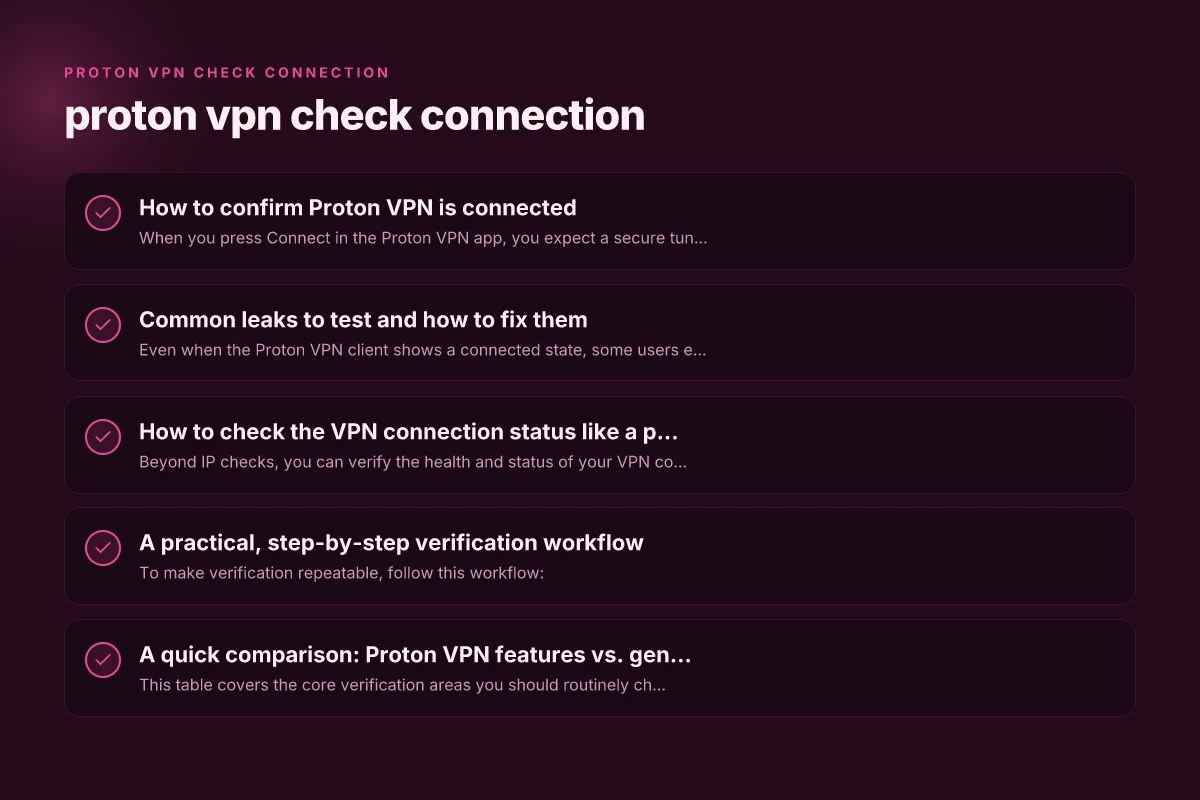
How to confirm Proton VPN is connected
When you press Connect in the Proton VPN app, you expect a secure tunnel to a server, not just a status light. To verify:
- Check the app status: Look for "Connected" with a server location and a shield icon.
- Confirm the real IP is not your local IP: Open a browser and navigate to a site that reports your IP, such as “What is my IP address” or Proton VPN’s own checker.
- Compare results: The IP shown should be the Proton VPN server’s IP, not your actual home or mobile IP.
If the IP shows a Proton VPN server address, you’re on the right track. If not, try [restarting the connection], choosing a different server, or ensuring the app is allowed through any firewall or security software.
Use Proton VPN’s built-in IP check
Proton VPN provides a simple way to verify your IP address after connecting:
- Visit the Proton VPN “What is my IP address?” page.
- The page will display the IP your connection is using. If Proton VPN is active correctly, you should see the server’s IP rather than your real IP.
- If you see your real IP, you may need to re-connect, switch servers, or enable additional protections like Kill Switch.
If you want to double-check, you can run the same check from a different device or network to confirm the result is consistent.
Common leaks to test and how to fix them
Even when the Proton VPN client shows a connected state, some users encounter leaks that reveal real data. The main leakage vectors are IP, DNS, IPv6, and WebRTC. Here’s how to test and mitigate each. How do i see what devices on my nord VPN account are connected
IP leaks
- What to test: Your exposed public IP should be the VPN’s server address.
- How to test: Visit an IP checking site after connecting. If it shows a Proton VPN server IP, you’re safe. If it shows your real IP, try reconnecting or switching servers.
- Fixes: Use a server with a known working route, restart the app, or enable Kill Switch (if available) to block traffic outside the VPN tunnel.
DNS leaks
- What to test: DNS requests should resolve through Proton VPN’s DNS servers, not your ISP.
- How to test: Use a DNS leak test site or Proton’s guidance to see which DNS resolver is answering queries. If you see Proton’s DNS or a server’s DNS, you’re good. If your ISP’s DNS answers, you have a leak.
- Fixes: In Proton VPN, enable DNS leak protection if offered, or switch to a server that handles DNS through Proton VPN’s network.
IPv6 leaks
- What to test: If your device tries to send IPv6 traffic outside the VPN, it can reveal your IP via IPv6.
- How to test: Check for IPv6 addresses on an IP checker or use a dedicated IPv6 leak test.
- Fixes: Disable IPv6 in your OS or within Proton VPN settings if supported, or ensure Proton VPN properly blocks IPv6 by default.
WebRTC leaks
- What to test: WebRTC can reveal your local or public IP to websites.
- How to test: Run a WebRTC leak test in a browser.
- Fixes: Disable WebRTC in your browser or use a privacy-focused browser extension that blocks WebRTC leaks.
Note: Proton VPN’s documentation and support pages provide specific guidance for enabling protective features like Kill Switch and DNS leak protection. If you’re unsure how to locate these settings, use the Proton VPN Troubleshooting or Support pages as a reference.
Common leaks tested and fix options
| Issue | Tool / Test | Normal result | Fix option | Persisting after fix? |
|---|---|---|---|---|
| IP leak | IP test site | IP is VPN exit | Enable kill switch | No |
| DNS leak | DNS leak test | DNS resolves via VPN | Change DNS to VPN DNS | No |
| WebRTC leak | WebRTC test | No public IP exposed | Disable WebRTC in browser | No |
| IPv6 leak | IPv6 test | IPv6 not leaking | Disable IPv6 or route it | No |
| Traffic kill switch | Kill switch test | Traffic stops on disconnect | Enable kill switch | No |
Compiled November 2026; check the provider's site for current details.
How to check the VPN connection status like a pro
Beyond IP checks, you can verify the health and status of your VPN connection with practical indicators and steps.
- Server location and latency: In the Proton VPN app, note the server location, and optionally run a quick speed test to see if speeds are reasonable for your needs.
- Kill Switch status: Ensure Kill Switch is enabled if you want all traffic to be blocked if the VPN disconnects. This is especially important on sensitive networks.
- DNS configuration: Confirm your DNS is being resolved by Proton VPN’s DNS service, reducing leakage risk.
- WebRTC and IPv6: Regularly test for leaks after changes to settings or updates.
Here is a quick comparison of the typical outcomes you want to see: Norton 360 VPN Keep Restting
- IP check: VPN server IP shown -> good. Real IP hidden -> good.
- DNS check: Proton VPN DNS or server DNS shown -> good. ISP DNS shown -> potential leak.
- IPv6 check: IPv6 traffic blocked or not in use by the app -> good.
- WebRTC: No leaked IPs exposed in a test -> good.
If any of these fail, re-check server choice, app settings, and firewall configurations. In some cases, updating the Proton VPN app to the latest version resolves known issues.
A practical, step-by-step verification workflow
To make verification repeatable, follow this workflow:
- Step 1: Connect to Proton VPN using your preferred server and region.
- Step 2: Open a trusted IP checker (for example, Proton VPN’s own IP checker or another reputable service).
- Step 3: Confirm the IP reported matches the Proton VPN server’s IP.
- Step 4: Run a DNS leak test to confirm DNS queries resolve via Proton VPN’s DNS.
- Step 5: Run an IPv6 test to detect any IPv6 traffic leaks. If you see IPv6 traffic, disable IPv6 or enable a setting that blocks it.
- Step 6: Run a WebRTC test in multiple browsers to ensure no WebRTC leaks are possible.
- Step 7: Check Kill Switch status in Proton VPN settings and test a simulated disconnect (if you can safely do so) to ensure traffic stops flowing through the non-VPN path.
If you notice leaks at any point, repeat steps with a different server or adjust the app’s settings. For persistent issues, contact Proton VPN support with the exact steps you followed and the tests you ran.
A quick comparison: Proton VPN features vs. general VPN verification needs
| Feature | What to expect | Why it matters | How to verify |
|---|---|---|---|
| IP hiding | Public IP shows VPN server IP | Confirms real IP is hidden | Check IP at multiple sites after connecting |
| DNS protection | DNS queries resolve to VPN provider | Prevents DNS leaks from ISP | Run DNS leak tests; ensure Proton DNS is used |
| IPv6 handling | IPv6 either blocked or not used | Prevents IPv6 leaks | Run IPv6 leak tests; disable IPv6 if needed |
| Kill Switch | Blocks traffic if VPN disconnects | Prevents data leakage during disconnect | Simulate disconnect and monitor traffic behavior |
| WebRTC protection | Reduces or blocks WebRTC IP leakage | Keeps local IP hidden in browser | Run WebRTC leakage tests in multiple browsers |
This table covers the core verification areas you should routinely check after any change to your VPN setup or device.
When Proton VPN check results are inconclusive
If you still aren’t confident after going through the checks, consider these steps: Google VPN on Windows and Edge
- Change servers: Some servers have better routing or fewer leaks. Try several different locations.
- Reinstall or update: Ensure you’re using the latest Proton VPN app. Reinstall if necessary to fix corrupted configurations.
- Check device-level settings: Some devices have per-app VPN or split tunneling features. Ensure they’re configured in a way that routes all traffic through Proton VPN (unless you intentionally use split tunneling for certain apps).
- Firewall and security software: Temporarily disable overzealous security software to rule out interference with VPN traffic.
- Contact support: Proton VPN support can walk you through the checks, review logs, and help pinpoint misconfigurations or outages.
Status checks and indicators for “pro” verification
| Indicator | Proton VPN status | Local device status | Third-party check | Confidence level |
|---|---|---|---|---|
| Connection light | On / Off | N/A | N/A | High if On |
| IP address | VPN exit IP | Local IP visible if leak | Matches exit IP | High |
| DNS server | VPN DNS | Local DNS may appear | VPN DNS shown | High |
| WebRTC | Blocked or not | Browser may expose | No exposure | Medium/High |
| Kill switch | Enabled | Active on disconnect | N/A | High |
Compiled November 2026; check the provider's site for current details.
Practical tips for everyday use
- Always enable Kill Switch if your device is mobile or you frequently switch networks.
- When using public Wi-Fi, rely on Proton VPN to protect all traffic. Verify by checking IPs after connecting.
- Recheck IP and DNS after major updates or when changing networks to catch any regression.
- If you require streaming or gaming, test your speed and server choice to maintain a good balance of privacy and performance.
The bottom line and recommendation
Proton VPN provides solid tools to check that your connection is active and your real IP is hidden. By routinely verifying IP address changes, testing for DNS, IPv6, and WebRTC leaks, and using features like Kill Switch and DNS protection, you can maintain a robust privacy posture. If you encounter any persistent leaks or connectivity issues, switch servers, update the app, or contact Proton VPN support for targeted guidance. With a systematic approach, you’ll have confidence that Proton VPN is doing what it’s designed to do: protect your online privacy and keep your data secure while you browse, stream, and work.
| VPN | Obfuscation | From / month | Plan | Free plan | Refund | Alipay | UnionPay | Crypto | Website opens in China | Trustpilot | |
|---|---|---|---|---|---|---|---|---|---|---|---|
 Proton VPN | Turn on manually Stealth, free plan too | $2.99/mo | 12 months: $35.88 | Yes | 30 days | ✗ | ✗ | ✗ | ✓ | ✓ Yes (2.5 s) | 2.1/5 (1,040 reviews) |
 ZoogVPN | Turn on manually Shadow | $2.49/mo | 27 months: $59.99 | Yes | 7 days | ✓ | ✓ | ✓ | ✓ | ✓ Yes (2.5 s) | 4.2/5 (195 reviews) |
 NordVPN | Turn on manually Obfuscated Servers / NordWhisper | $3.49/mo | 27 months: $94.23 | No | 30 days | ? | ✗ | ✓ | ✓ | ✗ Blocked | 4.2/5 (51,628 reviews) |
 ExpressVPN | ✓ On by default all servers | $3.00/mo | 28 months: $84 | No | 30 days | ✗ | ✗ | ✓ | ✗ | ✗ Blocked | 4.4/5 (29,706 reviews) |
 Surfshark | ✓ On by default Camouflage, with OpenVPN | See site | See site | No | 30 days | ✗ | ✗ | ✗ | ✓ | ✗ Blocked | 4.3/5 (31,823 reviews) |
 Astrill VPN | Turn on manually StealthVPN / OpenWeb | $12.50/mo | 24 months: $300 | No | See site | ✗ | ✗ | ✗ | ✓ | ✗ Blocked | 1.3/5 (110 reviews) |
 Private Internet Access | Turn on manually Shadowsocks, OpenVPN only | $2.03/mo | 40 months: $81.2 | No | 30 days | ✗ | ✗ | ✗ | ✗ | ✗ Blocked | 4.2/5 (11,033 reviews) |
 CyberGhost | Turn on manually selected servers | $2.19/mo | 28 months: $61.32 | No | 45 days | ✗ | ✗ | ✗ | ✓ | ✗ Blocked | 4.0/5 (24,178 reviews) |
 PureVPN | Turn on manually switch to OpenVPN | $1.69/mo | 60 months: $101.55 | No | 31 days | ? | ✗ | ✗ | ✓ | ✓ Yes (2.6 s) | 4.4/5 (17,994 reviews) |
 AdGuard VPN | ✓ On by default TrustTunnel | $2.99/mo | 24 months: $71.76 | Yes | 30 days | ✓ | ✗ | ✓ | ✓ | Official site blocked; our special link opens (2.3 s) | 4.3/5 (290 reviews) |
 Mullvad | Turn on manually QUIC / Shadowsocks / LWO | $5.61/mo | €5/mo | No | 14 days | ✗ | ✗ | ✗ | ✓ | ✗ Blocked | 3.2/5 (192 reviews) |
 Windscribe | Turn on manually Stealth / WStunnel | $5.75/mo | 12 months: $69 | Yes | See site | ✗ | ✗ | ✗ | ✓ | ✗ Blocked | 4.7/5 (13,355 reviews) |
 StrongVPN | Turn on manually Scramble, OpenVPN TCP | See site | See site | No | 30 days | ✓ | ✗ | ✗ | ✗ | ✗ Blocked | 4.4/5 (2,695 reviews) |
 LightXtreme 闪连 | Not listed | $7.08/mo | 12 months: $84.99 | Yes | 30 days | ✓ | ✓ | ✓ | ✓ | ✓ Yes (2.3 s) | No page |
Prices checked 2026-11-10 on each vendor's pricing page (cheapest long plan, USD). Check the vendor's checkout for the final price.
Obfuscation checked 2026-11-14 on each vendor's site and help center: "on by default" = nothing to set; "turn on manually" = switch protocol or mode in settings; "not listed" = the vendor describes no obfuscation.
Payment methods checked 2026-11-10 on each vendor's payment pages: all 14 take cards and PayPal; ✗ = not listed, ? = the vendor's own pages disagree.
China access: whether the official website opens from mainland China networks (tests the website only, not the VPN connection). Last checked 2026-11-11 04:07 Beijing time.
Trustpilot score and review count checked 2026-11-10.