A practical guide to why Total Wireless phones may ask for a password and how to resolve common issues safely.
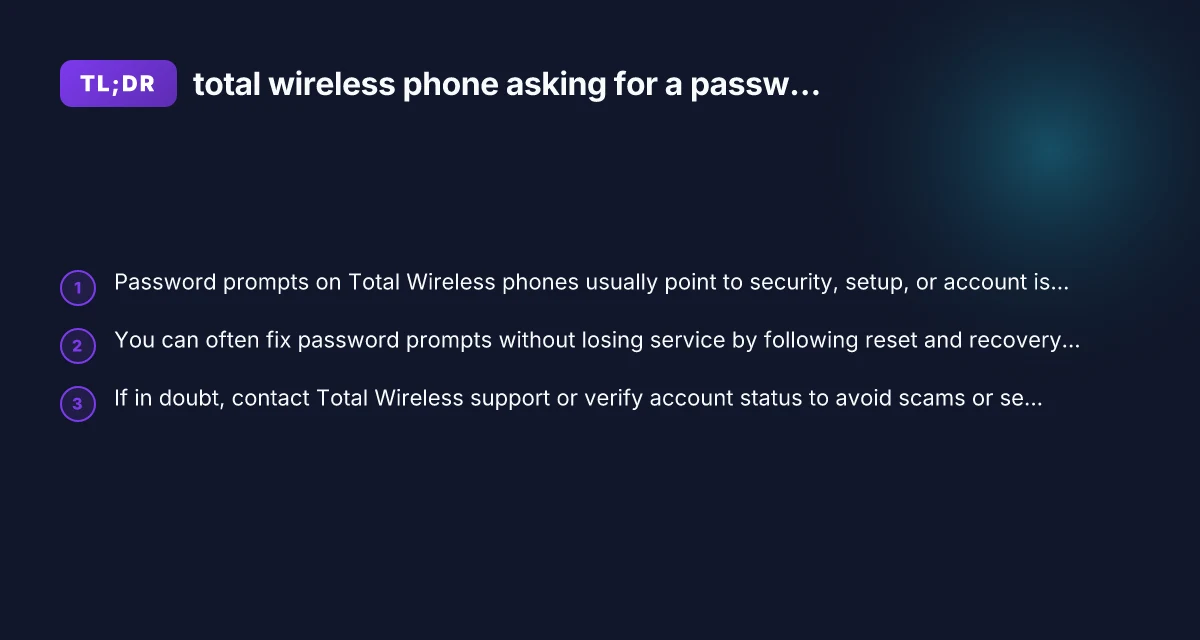
Total Wireless phones can prompt for a password for several legitimate reasons. Whether you’re setting up a new device, reconnecting after a reset, or trying to access voicemail and apps, a password request is usually a signal that the device is trying to protect your data or verify your identity. This guide walks you through common causes, safe ways to respond, and practical steps to get back to calling, texting, and browsing with Total Wireless.

Why a Total Wireless phone might ask for a password
A password prompt can appear at different moments and for different assets on a Total Wireless phone. Common scenarios include:
- Initial setup: After turning on a brand-new phone or a factory reset, you may be asked to enter a Google or Apple ID password, or a carrier-provisioning password, to activate the device and restore settings.
- SIM or network lock: Some devices may request a SIM PIN to unlock the SIM card, especially if a PIN was set up previously.
- Screen lock and security: If the phone is locked, you’ll be asked for a device unlock password, PIN, pattern, or biometric unlock method.
- Voicemail or account security: Accessing voicemail, the Total Wireless account, or the phone’s online portal might prompt for a password or PIN to protect your account.
- App-level protections: Apps that come with the device or that you installed can require passwords, such as email apps, banking apps, or security apps.
- Device management or carrier configuration: In some cases, a device management profile or carrier provisioning steps can prompt for passwords during activation or updates.
Understanding which password is requested helps you choose the right recovery path without compromising security or service.
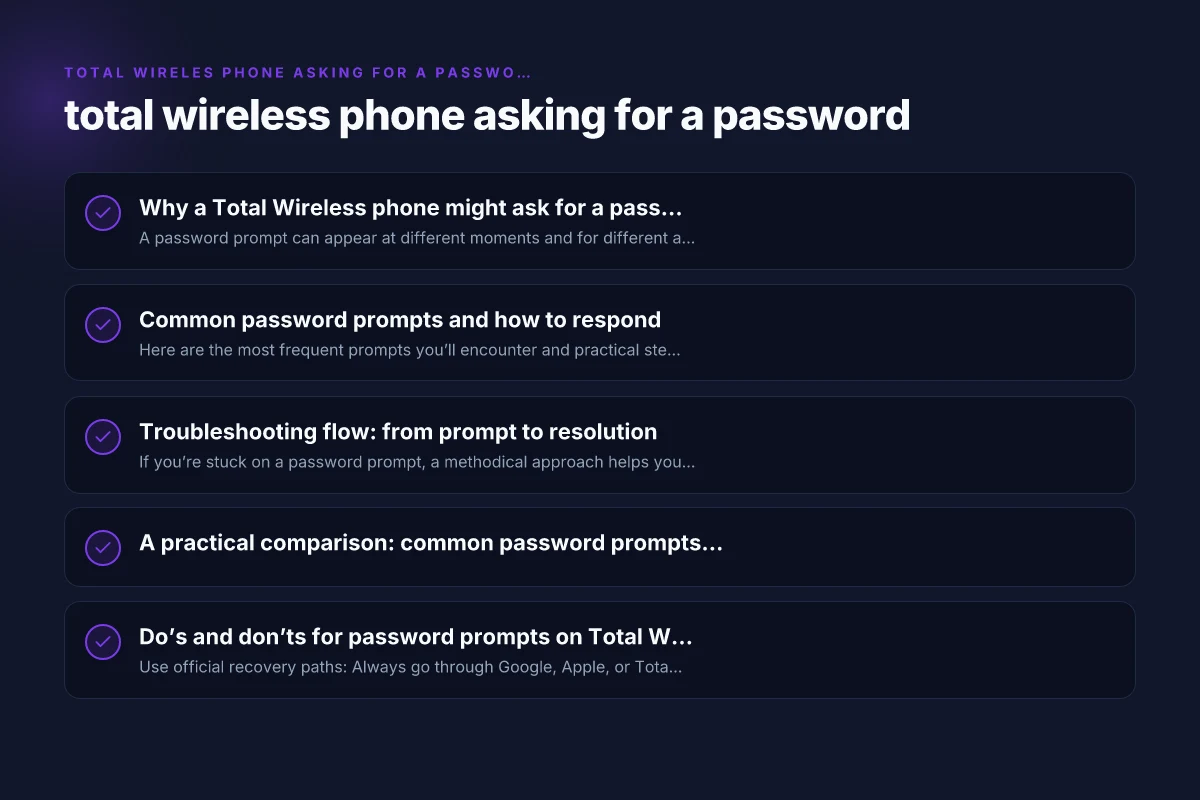
Common password prompts and how to respond
Here are the most frequent prompts you’ll encounter and practical steps to handle them safely.
1) Device unlock password
- What it asks for: A passcode, PIN, pattern, or biometrics to unlock the phone.
- How to respond safely:
- Enter the code you set up or use a biometric option if enabled.
- If you forgot it, try the “Forgot pattern” or “Forgot password” option (where available) to use your Google/Apple account recovery.
- If authentication fails too many times, you may need to perform a factory reset, which erases data, only as a last resort.
- Cautions:
- Do not enter guesses repeatedly. This can lock the device.
- Make sure you’re using your own account or a trusted device to reset.
2) SIM PIN or network unlock
- What it asks for: A SIM PIN to unlock the SIM, or a carrier network unlock code.
- How to respond safely:
- If you know you set a SIM PIN, enter it. If you forgot, you may need to contact Total Wireless or the device manufacturer to obtain or reset it.
- If the SIM is from a previous carrier and your phone is carrier-locked, you may need to request an unlock from Total Wireless or ensure the device is compatible with Total Wireless service.
- Cautions:
- Three incorrect attempts typically disable the SIM briefly. Follow on-screen prompts to recover.
3) Google or Apple ID password during activation
- What it asks for: The credentials for your Google (Android) or Apple (iOS) account to activate, verify ownership, or restore data.
- How to respond safely:
- Use the official sign-in page via the device or a trusted browser.
- If you forgot the password, use the account recovery flow provided by Google or Apple.
- Consider enabling two-factor authentication to prevent future lockouts.
- Cautions:
- Never enter credentials on unfamiliar screens or pop-ups. Ensure you’re on official sign-in pages.
4) Voicemail PIN or Total Wireless account password
- What it asks for: A voicemail PIN or account password to manage voicemail, billing, or plan settings.
- How to respond safely:
- Use the PIN you created or reset it through the Total Wireless account portal or customer support.
- If you forgot, follow the official recovery flow, do not use a random guess.
- Cautions:
- Keep your PIN confidential to prevent voicemail tampering.
5) App or device security prompts
- What it asks for: Passwords for apps (email, banking, cloud) or device security apps.
- How to respond safely:
- Use your main password or the app’s own recovery options.
- Consider using a password manager to reduce forgetfulness.
- Cautions:
- Avoid reusing passwords across sensitive apps.
Troubleshooting flow: from prompt to resolution
If you’re stuck on a password prompt, a methodical approach helps you resolve the issue without unnecessary delays.
- Confirm the prompt type
- Read the on-screen text carefully to identify whether it’s device unlock, SIM, account sign-in, or voicemail.
- Check if there are any help links or prompts like “Forgot password” or “Need help.”
- Try basic recovery options
- For device unlock: use biometric unlock if enabled. Otherwise try the known PIN or pattern.
- For Google/Apple ID: use the official password recovery pages.
- For voicemail or account passwords: use the official recovery or reset options.
- Verify network and account status
- Ensure your Total Wireless service is active and the device is properly provisioned.
- If you recently changed your plan or ported a number, there could be provisioning delays affecting prompts.
- Check for device updates or resets
- Sometimes prompts occur after software updates. Ensure your device has the latest OS version.
- If you must reset, back up data first when possible. A factory reset can remove data but may be necessary if you cannot access the device.
- Contact reputable support channels
- When recovery options fail, reach Total Wireless support through official channels. Avoid third-party sites that claim to bypass passwords.
- Prepare your account information (PIN, last four of phone number, security questions) to verify ownership.
A practical comparison: common password prompts and likely fixes
| Prompt type | Likely cause | Safe recovery steps | When to seek support |
|---|---|---|---|
| Device unlock prompt | Forgotten device PIN/password | Use forgot options, Google/Apple account recovery, biometrics | If recovery fails after several attempts or device is locked |
| SIM PIN prompt | SIM PIN enabled; mis-entry or SIM swap | Enter correct PIN; contact carrier to reset if forgotten | SIM not working, device shows “SIM not provisioned” |
| Google/Apple account prompt | Activation or sign-in with account | Use official password recovery; check secondary email/phone; enable 2FA | Unable to reset due to lost access to recovery options |
| Voicemail PIN prompt | Voicemail PIN forgotten | Use Total Wireless account recovery or voicemail reset flow | Voicemail access remains blocked after recovery attempts |
| App security prompt | Sensitive app requires password | Use app’s own recovery; reset device security settings if needed | If the app won’t accept credentials or is compromised |
Do’s and don’ts for password prompts on Total Wireless phones
Do: How to use a VPN on your Xbox using Microsoft Edge
- Use official recovery paths: Always go through Google, Apple, or Total Wireless official portals.
- Keep a trusted device and email/phone for recovery codes: This makes resets faster.
- Enable two-factor authentication where possible: Adds an extra layer of security.
- Regularly update passwords and security questions: Reduces future lockouts.
Don’t:
- Don’t share passwords with anyone claiming to be support, even if they say they’re from Total Wireless.
- Don’t ignore suspicious prompts: If a prompt asks for sensitive information outside official channels, it’s likely a scam.
- Don’t assume you can bypass the password: Carrier and device protections exist to safeguard your data.
When to be cautious about Total Wireless security prompts
Security prompts are there to protect your account and device. However, scammers sometimes imitate support pages or calls to obtain passwords. Here are warning signs and safe practices:
- Unsolicited calls or texts asking for your password or verification codes.
- Websites or pages that look similar to Total Wireless but aren’t official.
- Urgent messages pressuring you to provide login details to “fix” a problem.
If you ever doubt a prompt’s legitimacy, pause and contact Total Wireless through verified channels:
- Use the official Total Wireless website to locate contact options.
- Call the support line shown on your account or device documentation.
- Visit a Total Wireless store for in-person help if needed.
Final recommendations for resolving a password prompt on a Total Wireless phone
- Start with the most common causes: device unlock, Google/Apple sign-in, or voicemail/account PIN.
- Use official recovery options rather than guessing passwords or using third-party tools.
- If you hit a wall, gather essential information (phone number, account PIN, device model, IMEI/MEID if requested) and contact Total Wireless support.
- Consider preventive steps after resolution: set a memorable but strong unlock pattern or PIN, enable biometric unlock, and store passwords securely with a reputable manager.
By understanding why a Total Wireless phone asks for a password and following careful recovery steps, you can restore access quickly while keeping your data safe. If you’re ever unsure, prioritize official sources and supported channels to protect your device and your plan.