A practical guide to resolve VPN residuals and geolocation mismatches after uninstalling extensions, with steps to restore accurate country detection.
If you’ve used a VPN on your computer and then removed or deleted it, you might still see your location as if you’re in a different country. This can happen due to leftover extension data, browser geolocation caches, or system proxy settings. The good news is you can usually fix this with a clear, methodical approach. Below is a straightforward, step-by-step guide to identify the problem, clean it up, and test your location accurately again.

1) Understand where the mismatch is coming from
Before you start cleaning, it helps to know where the “fake” location is being determined. Common sources include:
- VPN/browser extensions that were never fully removed
- Browser cookies, cache, and local storage
- Device proxies or network settings
- Website-specific geolocation data (through your IP or device sensors)
- DNS caching or ISP routing that still shows an alternate country
Identifying the culprit saves time and prevents repeating steps. If you still had the extension active in a browser when you tested, that’s a likely source. If you used multiple browsers or devices, test each one separately.
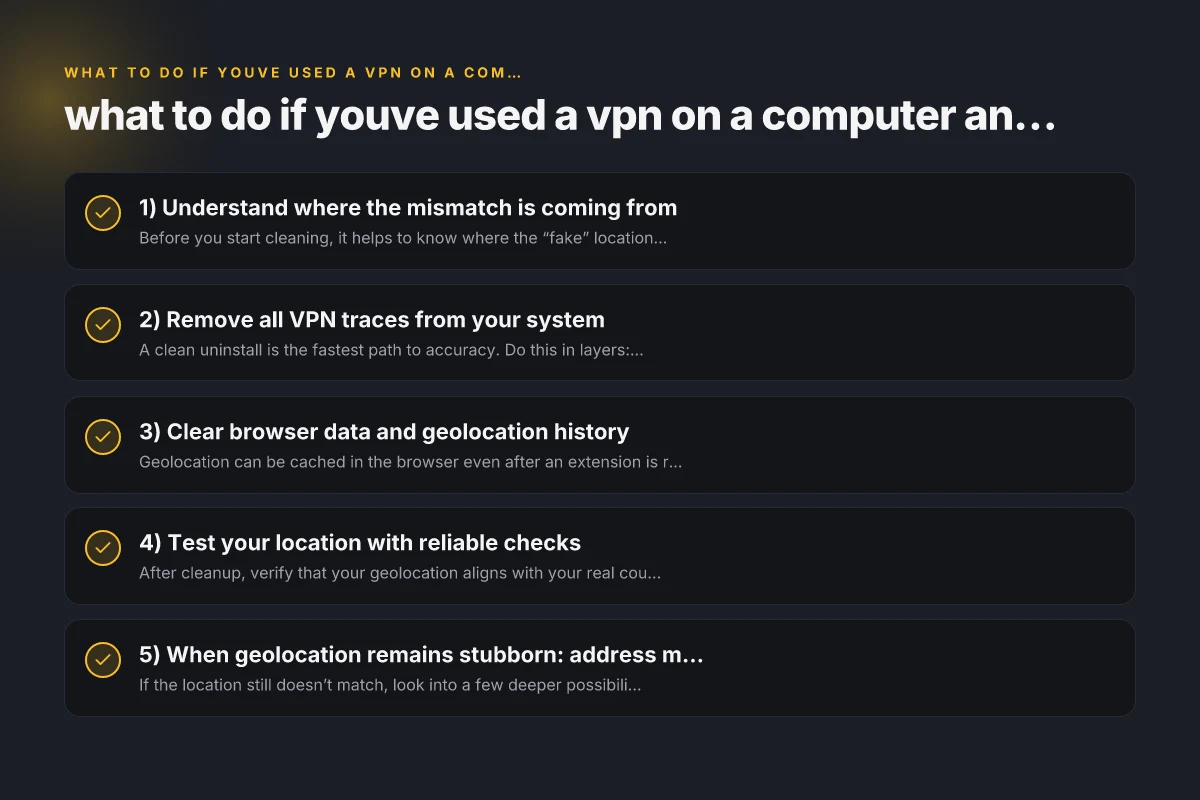
2) Remove all VPN traces from your system
A clean uninstall is the fastest path to accuracy. Do this in layers: first the app, then browser extensions, then any remaining settings.
- Uninstall the VPN app:
- Windows: Settings > Apps > [VPN app] > Uninstall
- macOS: Applications > [VPN app] > Move to Trash
- Android/iOS: Hold app icon > Uninstall/Delete
- Remove browser extensions:
- Chrome: chrome://extensions/ > Remove
- Firefox: about:addons > Extensions > Remove
- Edge: edge://extensions/ > Remove
- Check proxies and network settings:
- Windows: Settings > Network & Internet > Proxy > Ensure Use a proxy server is Off
- macOS: System Settings > Network > Advanced > Proxies (untick anything related to VPN/proxy)
- Clear DNS cache:
- Windows: open Command Prompt as admin, run ipconfig /flushdns
- macOS: Terminal, run sudo dscacheutil -flushcache. Sudo killall -HUP mDNSResponder
- Reboot after flushing if possible
- Reboot the device:
- A fresh restart often clears lingering policy or cache entries that naps in memory
3) Clear browser data and geolocation history
Geolocation can be cached in the browser even after an extension is removed. Clear data and test with a clean slate.
- Clear site data and cookies:
- Chrome: Settings > Privacy and security > Clear browsing data > All time > Cookies and other site data, Cached images and files
- Firefox: Options > Privacy & Security > Cookies and Site Data > Clear
- Edge: Settings > Privacy, search, and services > Clear browsing data
- Reset location permissions:
- Chrome: Settings > Privacy and security > Site settings > Location > Remove/Reset
- Firefox: Preferences > Privacy & Security > Permissions > Location > Settings
- Edge: Settings > Cookies and site permissions > Location
- Disable or reset geolocation in tests:
- If you use site geolocation tests (like maps), ensure the browser isn’t allowed to report a fixed location.
4) Test your location with reliable checks
After cleanup, verify that your geolocation aligns with your real country. Use multiple checks to confirm consistency. What protocol can you use to access the Edge routers remotely
- Use a reputable IP-based location tester:
- Examples: a site that reports your IP country. Do at least two different sites to compare results.
- Check browser vs. device location:
- In the browser, perform a geolocation test (some sites ask for permission. Allow once for your test) and compare with your IP-based location.
- Consider a clean test environment:
- Temporarily disable any extra extensions, run a fresh browser profile, or use an incognito/private window for testing.
- Repeat on other devices or networks:
- If your home Wi-Fi router is routing through a VPN-like proxy, you may still see an offset. Testing on a mobile hotspot can help verify.
If you still see a discrepancy after these steps, what you’re seeing may be a server-side geolocation result rather than your actual location. Some services locate you by IP ranges assigned to certain countries, which you can’t directly control without a VPN or proxy.
5) When geolocation remains stubborn: address more advanced causes
If the location still doesn’t match, look into a few deeper possibilities.
- DNS caching at the router or ISP:
- Some ISPs cache DNS results or route traffic through proxies in another country. Resetting or rebooting your router can help. Flushing DNS on the device may not fix this if the DNS cache is on the network path.
- Router-level VPN or proxy:
- Some routers run a VPN or proxy at the hardware level. Check your router’s admin page for any configured VPN or proxy settings and disable them if you’re not using them.
- Mobility of IP addresses:
- Some VPNs or data centers outbound IPs can be flagged in a way that geolocation appears different from your actual location due to IP geolocation data accuracy. This is more common with VPNs that don’t consistently map to a single country.
- Security software or corporate policies:
- Some security tools enforce location-based rules for privacy or compliance. Ensure such software isn’t injecting a remote location.
If you’re still stymied, there’s a practical, user-friendly option to consider: reputable VPN providers that offer consistent, reliable geolocation masking and simple controls.
6) When you want reliable, predictable results: consider ZoogVPN
If you want a VPN experience that minimizes residual location issues and is easy to manage across devices, ZoogVPN is a solid option to consider. ZoogVPN emphasizes straightforward setup, reliable servers in multiple countries, and clear privacy practices. Using a reputable VPN provider can help you:
- Ensure your IP geolocation matches the country you select
- Reduce residual data from past VPN usage through clean servers and updated IP databases
- Provide a consistent experience across browsers and devices
Tips for choosing a VPN like ZoogVPN: The service Edge cannot be reached zscaler
- Server coverage: Look for a broad set of country options and reasonable speeds
- Easy install and uninstall: A clean app experience helps prevent leftovers
- Privacy and logging policy: Prefer providers with a transparent approach
- Customer support: Quick help when you run into location or connectivity issues
If you decide to try ZoogVPN, visit zoogvpn.com to review current features and plans. When you test after installing and connecting to a chosen country, re-run the location checks to confirm the results align with your real location or the country you’ve selected in the VPN.
Section: a quick comparison (VPN-related factors to watch)
| Factor | What to look for | Why it matters |
|---|---|---|
| Server locations | Wide country coverage, quick updates | More options to match needs and reduce leakage |
| Obfuscation/Stealth mode | Availability and effectiveness | Helps disguise VPN traffic from network defenses and some streaming services |
| Kill switch | Automatic protection if VPN drops | Prevents accidental IP leaks by default |
| DNS leak protection | Built-in DNS leak tests | Ensures DNS queries don’t reveal your real location |
| Logging policy | Clear, minimal logging | Reduces the chance of location data being inferred |
| Cross-device support | Desktop, mobile, router compatibility | Consistency across devices and networks |
Final section: quick steps to recap
- Fully remove any VPN app and all browser extensions
- Clear browser data, cookies, and site permissions related to location
- Flush DNS and reboot your device
- Test location with multiple checks and on multiple networks
- If issues persist, consider a reputable VPN like ZoogVPN for predictable results and easier management
Recommendation
If you’re dealing with a stubborn location mismatch after removing a VPN, you don’t have to live with confusing geolocation. Start with the steps above to clean up leftovers and test again. If you want a dependable, user-friendly option, ZoogVPN offers straightforward setup and reliable country selection, which can help prevent future mismatches and provide a smoother browsing experience. For more details, visit zoogvpn.com. Planetvpn browser extension for Edge: what you need to know and the better alternative
| VPN | Obfuscation | From / month | Plan | Free plan | Refund | Alipay | UnionPay | Crypto | Website opens in China | Trustpilot | |
|---|---|---|---|---|---|---|---|---|---|---|---|
 ZoogVPN | Turn on manually Shadow | $2.49/mo | 27 months: $59.99 | Yes | 7 days | ✓ | ✓ | ✓ | ✓ | ✓ Yes (2.5 s) | 4.2/5 (195 reviews) |
 NordVPN | Turn on manually Obfuscated Servers / NordWhisper | $3.49/mo | 27 months: $94.23 | No | 30 days | ? | ✗ | ✓ | ✓ | ✗ Blocked | 4.2/5 (51,628 reviews) |
 ExpressVPN | ✓ On by default all servers | $3.00/mo | 28 months: $84 | No | 30 days | ✗ | ✗ | ✓ | ✗ | ✗ Blocked | 4.4/5 (29,706 reviews) |
 Surfshark | ✓ On by default Camouflage, with OpenVPN | See site | See site | No | 30 days | ✗ | ✗ | ✗ | ✓ | ✗ Blocked | 4.3/5 (31,823 reviews) |
 Proton VPN | Turn on manually Stealth, free plan too | $2.99/mo | 12 months: $35.88 | Yes | 30 days | ✗ | ✗ | ✗ | ✓ | ✓ Yes (2.5 s) | 2.1/5 (1,040 reviews) |
 Astrill VPN | Turn on manually StealthVPN / OpenWeb | $12.50/mo | 24 months: $300 | No | See site | ✗ | ✗ | ✗ | ✓ | ✗ Blocked | 1.3/5 (110 reviews) |
 Private Internet Access | Turn on manually Shadowsocks, OpenVPN only | $2.03/mo | 40 months: $81.2 | No | 30 days | ✗ | ✗ | ✗ | ✗ | ✗ Blocked | 4.2/5 (11,033 reviews) |
 CyberGhost | Turn on manually selected servers | $2.19/mo | 28 months: $61.32 | No | 45 days | ✗ | ✗ | ✗ | ✓ | ✗ Blocked | 4.0/5 (24,178 reviews) |
 PureVPN | Turn on manually switch to OpenVPN | $1.69/mo | 60 months: $101.55 | No | 31 days | ? | ✗ | ✗ | ✓ | ✓ Yes (2.6 s) | 4.4/5 (17,994 reviews) |
 AdGuard VPN | ✓ On by default TrustTunnel | $2.99/mo | 24 months: $71.76 | Yes | 30 days | ✓ | ✗ | ✓ | ✓ | Official site blocked; our special link opens (2.3 s) | 4.3/5 (290 reviews) |
 Mullvad | Turn on manually QUIC / Shadowsocks / LWO | $5.61/mo | €5/mo | No | 14 days | ✗ | ✗ | ✗ | ✓ | ✗ Blocked | 3.2/5 (192 reviews) |
 Windscribe | Turn on manually Stealth / WStunnel | $5.75/mo | 12 months: $69 | Yes | See site | ✗ | ✗ | ✗ | ✓ | ✗ Blocked | 4.7/5 (13,355 reviews) |
 StrongVPN | Turn on manually Scramble, OpenVPN TCP | See site | See site | No | 30 days | ✓ | ✗ | ✗ | ✗ | ✗ Blocked | 4.4/5 (2,695 reviews) |
 LightXtreme 闪连 | Not listed | $7.08/mo | 12 months: $84.99 | Yes | 30 days | ✓ | ✓ | ✓ | ✓ | ✓ Yes (2.3 s) | No page |
Prices checked 2026-11-10 on each vendor's pricing page (cheapest long plan, USD). Check the vendor's checkout for the final price.
Obfuscation checked 2026-11-14 on each vendor's site and help center: "on by default" = nothing to set; "turn on manually" = switch protocol or mode in settings; "not listed" = the vendor describes no obfuscation.
Payment methods checked 2026-11-10 on each vendor's payment pages: all 14 take cards and PayPal; ✗ = not listed, ? = the vendor's own pages disagree.
China access: whether the official website opens from mainland China networks (tests the website only, not the VPN connection). Last checked 2026-11-11 04:07 Beijing time.
Trustpilot score and review count checked 2026-11-10.