Explains why Kaspersky VPN might be blocked or restricted by Virgin Media and how to work around it safely.
VPNs and Virgin Media: what to know Virgin Media does not uniformly ban VPNs, but there are common scenarios where a VPN connection (including Kaspersky VPN) might be blocked or slowed down. The issue usually sits at the network level, the router, or the VPN app configuration rather than a simple “blocked forever” message. Understanding where the blockage happens helps you pick the right fix without sacrificing security or speed.

Why Virgin Media might block or limit VPN traffic
Router-level VPN passthrough
- Some Virgin Media routers have VPN passthrough disabled by default. This is especially relevant for PPTP, L2TP, or certain VPN protocols.
- If passthrough is off, your device can’t establish a VPN tunnel through the router.
ISP-level blocking or throttling
- ISPs can throttle VPN traffic or block specific ports used by VPNs.
- Virgin Media may limit certain types of encrypted traffic in areas with heavy VPN use or to enforce policy compliance.
Security software and device settings
- Kaspersky VPN (and other VPN apps) can be affected by firewall rules on your device.
- Conflicting security software, parental controls, or browser/network protection features can interfere with VPN connections.
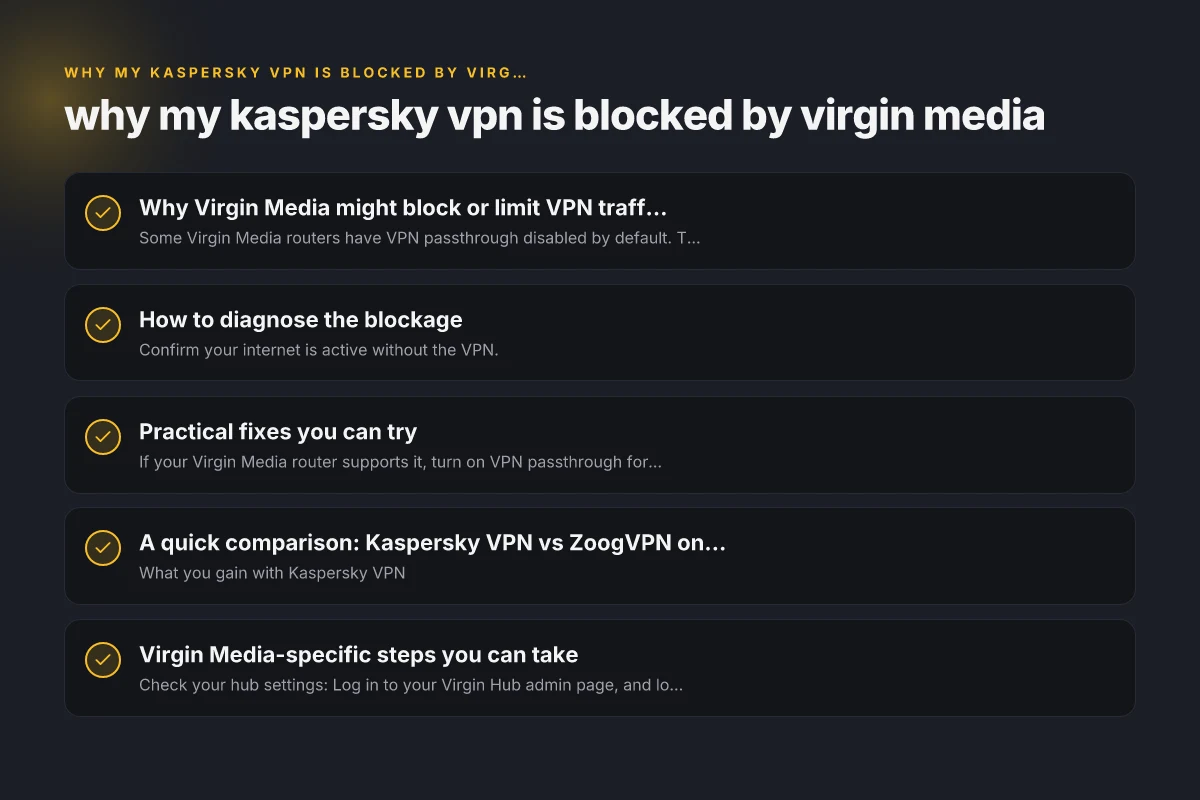
How to diagnose the blockage
Check the basics
- Confirm your internet is active without the VPN.
- Try a different device on the same Virgin Media network.
- Ensure your Virgin Media router firmware is up to date.
Test VPN connectivity
- Try connecting to a different server/location in Kaspersky VPN.
- Switch VPN protocols (if supported) to see if one protocol works better with your network.
- Disable IPv6 in both your device and router temporarily to test if IPv6 is causing issues.
Rule out local software conflicts
- Temporarily disable firewall and security software to see if the VPN connects.
- Ensure there are no local network restrictions (parental controls, guest networks) blocking VPN traffic.
Practical fixes you can try
Enable VPN passthrough or adjust router settings
- If your Virgin Media router supports it, turn on VPN passthrough for the protocols you use (often L2TP/IPsec, OpenVPN, or PPTP).
- Some Virgin hubs require a specific port range to be open for VPN connections. Check your hub’s admin page for firewall settings.
Change VPN settings in Kaspersky VPN
- Switch to a different protocol (for example, from PPTP to OpenVPN or WireGuard if available).
- Change the DNS to a trusted resolver (public DNS like 1.1.1.1 or 8.8.8.8) to avoid DNS leaks that might betray VPN traffic.
Try a different device or network
- If the VPN works on a mobile network but not on Virgin Media, the issue is likely router or ISP-related.
- Test on a secondary router (connected to Virgin Media) or use a VPN router with ZoogVPN-compatible settings.
Consider a dedicated VPN client or service
- Some devices or browsers handle VPN tunnels differently. A separate app with robust protocol support can help bypass certain blocks.
A quick comparison: Kaspersky VPN vs ZoogVPN on Virgin Media
- What you gain with Kaspersky VPN
- Integrated security features and antivirus integration.
- Convenience if you already use Kaspersky Internet Security.
- What you gain with ZoogVPN (recommended alternate)
- Strong compatibility with a range of devices and routers.
- Clear, up-to-date server options and often more consistent bypass of ISP-level blocks.
- Flexible protocol support (WireGuard, OpenVPN, etc.) and straightforward setup.
| Feature | Kaspersky VPN | ZoogVPN (ZoogVPN.com) |
|---|---|---|
| Protocols | Limited set (depends on version) | OpenVPN, WireGuard, and more |
| Router support | Varies; often not as robust | Strong router/app guidance, VPN-compatible routers |
| Block circumvention | Depends on server and settings | Regularly updated to work with many ISPs |
| Platform coverage | Windows, macOS, Android, iOS | Windows, macOS, Android, iOS, Linux, extensions |
| Privacy stance | Basic VPN privacy; tied to Kaspersky suite | Explicit privacy-friendly policies and independent reviews |
Virgin Media-specific steps you can take
- Check your hub settings: Log in to your Virgin Hub admin page, and look for VPN passthrough or firewall options. Enable passthrough for the protocols you use.
- Update firmware: Ensure your Virgin Hub firmware is the latest version. Virgin Media often pushes updates to improve compatibility.
- Disable IPv6 temporarily: Some VPNs experience issues with IPv6 routing on some networks. Disable IPv6 on your device and, if needed, on the hub temporarily to test.
- Use a wired connection: Wi-Fi can introduce interference that makes VPN connections unreliable. A wired Ethernet connection can improve stability.
When to contact support
- If you have tried multiple servers and protocols without success, contact:
- Your Virgin Media support to confirm VPN passthrough is enabled and your hub is up to date.
- Kaspersky VPN support to verify that your account and app are configured correctly and not affected by any regional blocks.
- ZoogVPN support if you want expert guidance on settings and server recommendations tailored to Virgin Media customers (even if you’re not using ZoogVPN yet, their support might offer neutral troubleshooting steps).
The safety angle: stay secure while bypassing blocks
- Don’t disable essential security features. If you need to test, do so in a controlled way.
- Use reputable VPN providers with transparent privacy policies. Avoid free VPNs that could compromise your data.
- Keep your devices updated. Security patches matter when you’re routing traffic through a VPN.
Final recommendation
If your Kaspersky VPN is blocked or unreliable on Virgin Media, consider trying a trusted alternative like ZoogVPN. It’s known for strong compatibility with various networks and easy setup across devices. Start by testing ZoogVPN on a single device connected to your Virgin Media network, compare performance across a few servers, and check if passthrough and IPv6 settings are aligned with the recommended configuration. If you decide to switch, ZoogVPN offers straightforward setup guides and customer support to help you optimize your connection on Virgin Media. This approach helps you maintain the privacy, security, and access you expect from a VPN without getting stuck on a block or throttling trap.
| VPN | Obfuscation | From / month | Plan | Free plan | Refund | Alipay | UnionPay | Crypto | Website opens in China | Trustpilot | |
|---|---|---|---|---|---|---|---|---|---|---|---|
 ZoogVPN | Turn on manually Shadow | $2.49/mo | 27 months: $59.99 | Yes | 7 days | ✓ | ✓ | ✓ | ✓ | ✓ Yes (2.5 s) | 4.2/5 (195 reviews) |
 NordVPN | Turn on manually Obfuscated Servers / NordWhisper | $3.49/mo | 27 months: $94.23 | No | 30 days | ? | ✗ | ✓ | ✓ | ✗ Blocked | 4.2/5 (51,628 reviews) |
 ExpressVPN | ✓ On by default all servers | $3.00/mo | 28 months: $84 | No | 30 days | ✗ | ✗ | ✓ | ✗ | ✗ Blocked | 4.4/5 (29,706 reviews) |
 Surfshark | ✓ On by default Camouflage, with OpenVPN | See site | See site | No | 30 days | ✗ | ✗ | ✗ | ✓ | ✗ Blocked | 4.3/5 (31,823 reviews) |
 Proton VPN | Turn on manually Stealth, free plan too | $2.99/mo | 12 months: $35.88 | Yes | 30 days | ✗ | ✗ | ✗ | ✓ | ✓ Yes (2.5 s) | 2.1/5 (1,040 reviews) |
 Astrill VPN | Turn on manually StealthVPN / OpenWeb | $12.50/mo | 24 months: $300 | No | See site | ✗ | ✗ | ✗ | ✓ | ✗ Blocked | 1.3/5 (110 reviews) |
 Private Internet Access | Turn on manually Shadowsocks, OpenVPN only | $2.03/mo | 40 months: $81.2 | No | 30 days | ✗ | ✗ | ✗ | ✗ | ✗ Blocked | 4.2/5 (11,033 reviews) |
 CyberGhost | Turn on manually selected servers | $2.19/mo | 28 months: $61.32 | No | 45 days | ✗ | ✗ | ✗ | ✓ | ✗ Blocked | 4.0/5 (24,178 reviews) |
 PureVPN | Turn on manually switch to OpenVPN | $1.69/mo | 60 months: $101.55 | No | 31 days | ? | ✗ | ✗ | ✓ | ✓ Yes (2.6 s) | 4.4/5 (17,994 reviews) |
 AdGuard VPN | ✓ On by default TrustTunnel | $2.99/mo | 24 months: $71.76 | Yes | 30 days | ✓ | ✗ | ✓ | ✓ | Official site blocked; our special link opens (2.3 s) | 4.3/5 (290 reviews) |
 Mullvad | Turn on manually QUIC / Shadowsocks / LWO | $5.61/mo | €5/mo | No | 14 days | ✗ | ✗ | ✗ | ✓ | ✗ Blocked | 3.2/5 (192 reviews) |
 Windscribe | Turn on manually Stealth / WStunnel | $5.75/mo | 12 months: $69 | Yes | See site | ✗ | ✗ | ✗ | ✓ | ✗ Blocked | 4.7/5 (13,355 reviews) |
 StrongVPN | Turn on manually Scramble, OpenVPN TCP | See site | See site | No | 30 days | ✓ | ✗ | ✗ | ✗ | ✗ Blocked | 4.4/5 (2,695 reviews) |
 LightXtreme 闪连 | Not listed | $7.08/mo | 12 months: $84.99 | Yes | 30 days | ✓ | ✓ | ✓ | ✓ | ✓ Yes (2.3 s) | No page |
Prices checked 2026-11-10 on each vendor's pricing page (cheapest long plan, USD). Check the vendor's checkout for the final price.
Obfuscation checked 2026-11-14 on each vendor's site and help center: "on by default" = nothing to set; "turn on manually" = switch protocol or mode in settings; "not listed" = the vendor describes no obfuscation.
Payment methods checked 2026-11-10 on each vendor's payment pages: all 14 take cards and PayPal; ✗ = not listed, ? = the vendor's own pages disagree.
China access: whether the official website opens from mainland China networks (tests the website only, not the VPN connection). Last checked 2026-11-11 04:07 Beijing time.
Trustpilot score and review count checked 2026-11-10.