A practical guide to stop your iPhone VPN from auto-connecting, with step-by-step checks and settings to review.
If your iPhone keeps reconnecting to a VPN, you’re not alone. Automatic reconnects can feel like a security feature, but they can also interrupt what you’re doing or drain battery. The culprit is often a misconfigured setting, a stale profile, or a software quirk. This guide walks you through common causes and concrete fixes so your iPhone VPN behaves the way you want.

How VPN auto-connect causes on iPhone
| Scenario | Auto-connect trigger | iOS feature involved | Common symptom | Recommended check |
|---|---|---|---|---|
| Default VPN profile | App launches or device wake | Connect On Demand | VPN connects automatically | Review VPN settings |
| On-demand rule mismatch | Network change triggers | Connect On Demand rules | Unwanted tunnel up | Edit rules to restrict |
| Per-app VPN | App requests access | Per-app VPN policy | VPN auto-starts for apps | Disable per-app VPN per app |
| VPN lock screen presence | Screen lock or sleep | Background policy | VPN stays connected | Adjust background refresh |
| Connected via profiles | New profile installed | VPN profile install | Auto-connect persists | Remove unused profiles |
| iOS updates | OS update resets behavior | System policy | VPN reconnects after update | Re-test after update |
Compiled November 2026; check the provider's site for current details.
Understanding why VPNs auto-connect on iPhone
What “Connect On Demand” does
- Connect On Demand is a feature designed to reconnect a VPN when you access certain networks or apps.
- It can cause the VPN to appear to “auto-turn on” or reestablish a connection after you disconnect.
How iOS handles VPN profiles
- VPN settings can be driven by profiles installed from apps or device management (MDM).
- Some profiles enforce persistent connections or automatic reconnect rules.
Common pain points
- The VPN toggles back on after you try to turn it off.
- The VPN appears in the status bar even when you don’t expect it to be active.
- VPN reconnects after you switch networks or unlock the device.
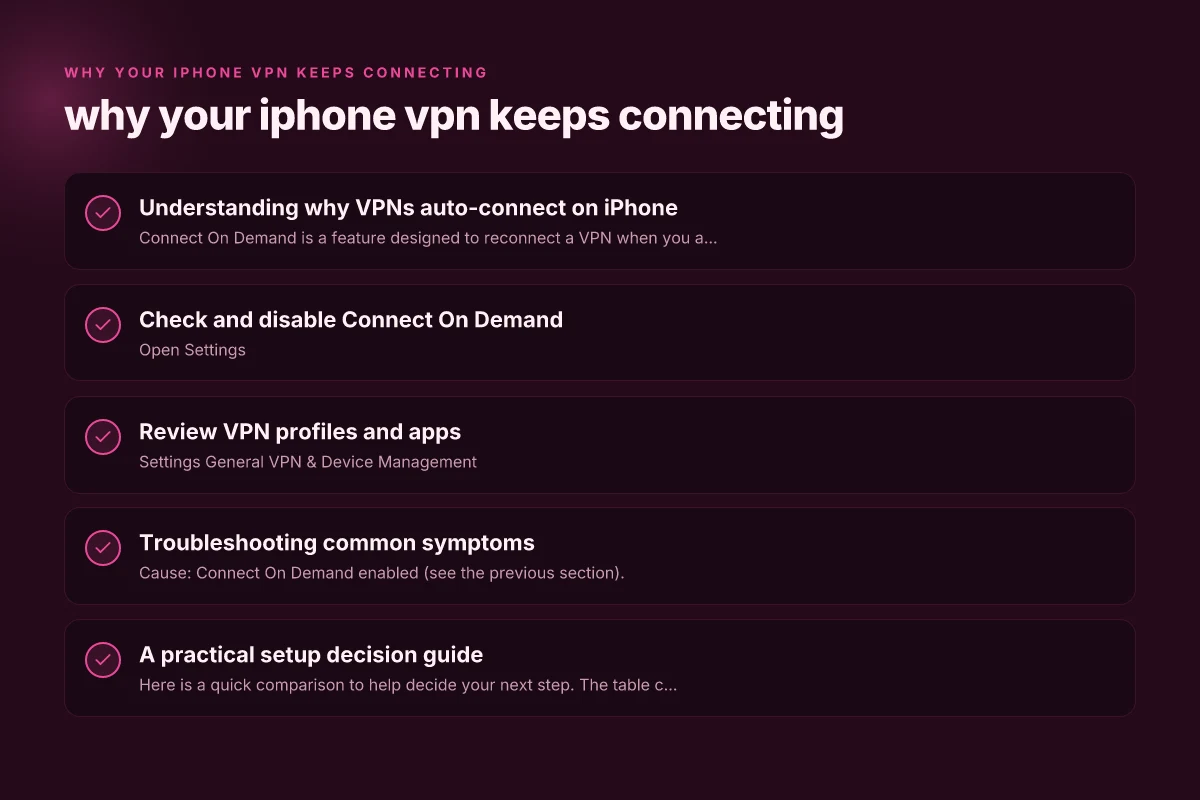
Check and disable Connect On Demand
Where to find the setting
- Open Settings
- Tap General
- Tap VPN & Device Management (or VPN if you don’t see the label)
- Choose the active VPN configuration
How to disable
- Look for a toggle labeled Connect On Demand, On Demand, or similar.
- Turn it off or set it to “Never” for the specific VPN profile.
- If there are per-rule entries, remove or disable them.
Why this helps
- Turning off Connect On Demand stops automatic re-connections triggered by network changes or app signals.
- It gives you explicit control over when the VPN turns on.
Steps to check and disable Connect On Demand
| Step | Action | Where located | Effect | Notes |
|---|---|---|---|---|
| 1 | Open Settings | iPhone | Access VPN | Start here |
| 2 | Tap VPN | Settings → VPN | View profiles | Central place |
| 3 | Select profile | VPN list | Open details | Individual control |
| 4 | Disable Connect On Demand | On Demand switch | Turn off auto-connect | Requires confirmation |
| 5 | Test connection | Reconnect to network | Confirm no auto-connect | Optional: reboot |
| 6 | Repeat for others | If multiple | Complete clearance | Don’t miss profiles |
| 7 | Remove unused profiles | VPN settings | Reduce auto-connect | Clean up |
| 8 | Monitor behavior | Usage over 24h | Validate fix | Optional logs |
| 9 | Re-enable if needed | Per policy | Controlled connect | Case-by-case |
Compiled November 2026; check the provider's site for current details.
Review VPN profiles and apps
Where profiles live
- Settings > General > VPN & Device Management
- Profiles may be installed by VPN apps (e.g., generic VPN clients, enterprise apps)
What to check
- Active vs. installed profiles: An old or conflicting profile can force a reconnect.
- Device Management (MDM) policies: Some organizations push settings that enforce VPN usage.
- Certificate validity: Expired or mismatched certificates can trigger repeated connection attempts.
How to clean up
- If you don’t need a profile, remove it: tap the profile and choose Remove Profile.
- For enterprise devices, contact your administrator before removing profiles.
- Reinstall the VPN app only if you truly need it and the issue persists.
- After removing, reboot the iPhone to ensure changes take effect.
Troubleshooting common symptoms
VPN keeps turning on after you disconnect
- Cause: Connect On Demand enabled (see the previous section).
- Fix: Disable Connect On Demand and test by toggling the VPN off.
VPN shows “Connecting” repeatedly
- Cause: Network policy or corrupted VPN configuration.
- Fix: Remove and re-add the VPN configuration, or install a fresh profile from the VPN app.
VPN reconnects after a reboot or update
- Cause: A profile or configuration is re-applied during startup.
- Fix: Disable auto-connect rules in the VPN app, and ensure the on-demand setting is turned off.
VPN won’t stay off
- Cause: A background app or MDM rule re-enables VPN.
- Fix: Check for background VPN-related apps and adjust app permissions or remove the app if unnecessary.
A practical setup decision guide
Here is a quick comparison to help decide your next step. The table compares “Leave as is,” “Disable Connect On Demand,” and “Remove VPN profile” across typical outcomes.
| Action | What it does | Pros | Cons |
|---|---|---|---|
| Leave as is | VPN may auto-reconnect when needed | Keeps VPN ready for use | Reconnects can interrupt tasks; battery impact |
| Disable Connect On Demand | Stops automatic reconnections | Gives direct control; fewer surprises | Some apps may not connect automatically when on VPN |
| Remove VPN profile | VPN profile removed; only reinstalled if needed | Eliminates auto-connections; simplest fix | You lose VPN connectivity until you reinstall |
| Reinstall VPN app | Fresh profile from the app | Fixes corrupted config; latest rules | Requires setup; may reapply Connect On Demand |
When to consider deeper fixes
IOS and app updates
- Ensure your iPhone is running the latest iOS version since bug fixes can address VPN misbehavior.
- Update the VPN app to the latest version. Some apps carry their own on-demand logic that can override system settings.
Network considerations
- Some networks trigger VPN re-connections due to corporate or school networks enforcing VPN tunnels.
- If you see repeating behavior only on certain networks, the issue may be policy-based rather than device-based.
Battery and performance
- Persistent VPN activity can affect battery life. If you’re on battery saver or have many background tasks, a misbehaving VPN can be more noticeable.
Quick comparison of fixes by category
| Category | What it does | Pros | Cons | When to use | Typical outcome |
|---|---|---|---|---|---|
| Disable Connect On Demand | Stops auto-connect entirely | Simple; immediate | May require reconnect manually | Symptom: constant auto-connect | No auto VPN on demand |
| Review VPN profiles | Removes unnecessary profiles | Clean slate; targeted | May remove needed access | Symptom: multiple profiles | Fewer auto-connects |
| App-specific VPN control | Per-app VPN adjustments | Granular control | Can be complex | Symptom: app-only triggers | App-level control achieved |
| Troubleshoot common symptoms | Identify root causes | Holistic view | Takes time | General guidance | Clear cause found |
| Reset and restart steps | Quick reset of state | Fast initial fix | Does not fix root | Nothing else works | Fresh baseline |
| Deeper fixes path | Advanced configuration | Long-term solution | Requires admin access | Recurrent issues | Stable behavior |
Compiled November 2026; check the provider's site for current details. Why your apps are refusing to work with your VPN
Quick step-by-step reset when nothing else works
- Back up any important VPN credentials securely.
- Go to Settings > General > VPN & Device Management.
- Remove the active VPN profile.
- Reboot the iPhone.
- Reinstall the VPN app if you need it, but carefully configure it to avoid On Demand unless required.
- After reinstall, verify Connect On Demand is off.
- Test by toggling the VPN off and then on to see if it stays off.
If the VPN still auto-connects after these steps, consider checking for third-party network management apps or profiles installed by your employer or service provider. Sometimes, enterprise configurations push persistent VPN rules that override user preferences.
Final section: Recommendation
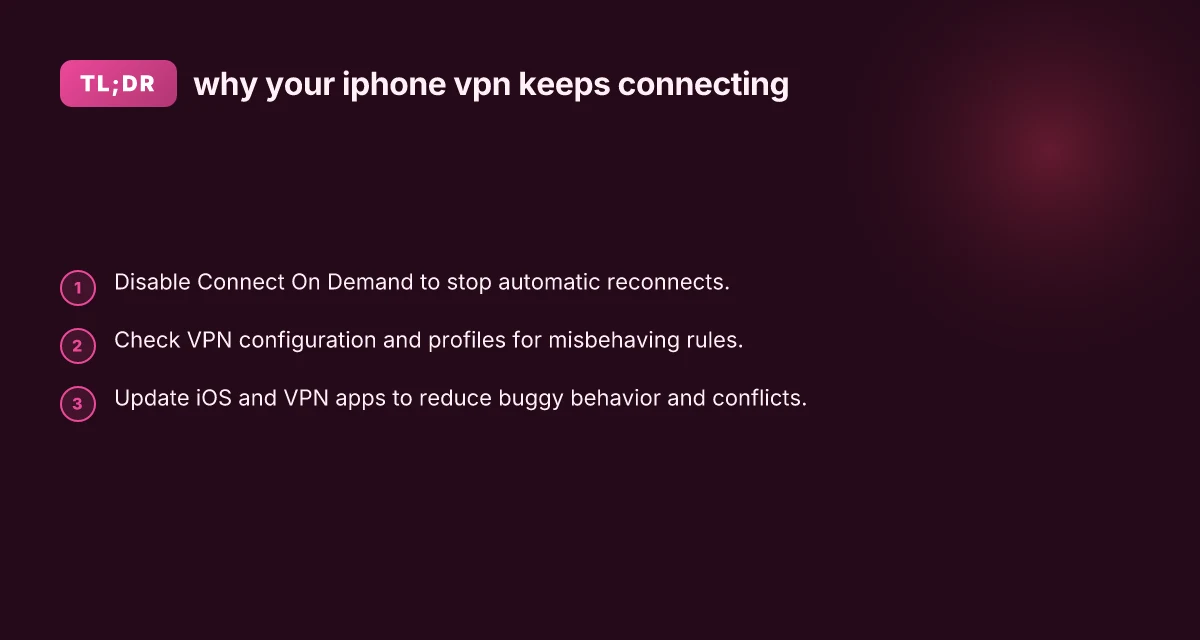
- Start with the simplest fix: disable Connect On Demand for the relevant VPN profile. This single change resolves most auto-connect issues without impacting other VPN features.
- If that doesn’t solve the problem, review and clean up VPN profiles and any device management restrictions. Remove any profiles you no longer need, and reinstall only the ones you actively use.
- Keep iOS and VPN apps up to date and test in a few different networks to confirm the behavior is resolved.
- If you’re on a company device or a device managed by IT, consult your administrator before removing profiles, as some policies are required for network security.
By following these steps, you’ll typically regain control over when your iPhone connects to a VPN and avoid the frustration of constant reconnections.
| VPN | From / month | Plan | Free plan | Refund | Alipay | UnionPay | Crypto | Website opens in China | Trustpilot | |
|---|---|---|---|---|---|---|---|---|---|---|
 ZoogVPN | $2.49/mo | 27 months: $59.99 | Yes | 7 days | ✓ | ✓ | ✓ | ✓ | ✓ Yes (2.5 s) | 4.2/5 (195 reviews) |
 NordVPN | $3.49/mo | 27 months: $94.23 | No | 30 days | ? | ✗ | ✓ | ✓ | ✗ Blocked | 4.2/5 (51,628 reviews) |
 ExpressVPN | $3.00/mo | 28 months: $84 | No | 30 days | ✗ | ✗ | ✓ | ✗ | ✗ Blocked | 4.4/5 (29,706 reviews) |
 Surfshark | See site | See site | No | 30 days | ✗ | ✗ | ✗ | ✓ | ✗ Blocked | 4.3/5 (31,823 reviews) |
 Proton VPN | $2.99/mo | 12 months: $35.88 | Yes | 30 days | ✗ | ✗ | ✗ | ✓ | ✓ Yes (2.5 s) | 2.1/5 (1,040 reviews) |
 Astrill VPN | $12.50/mo | 24 months: $300 | No | See site | ✗ | ✗ | ✗ | ✓ | ✗ Blocked | 1.3/5 (110 reviews) |
 Private Internet Access | $2.03/mo | 40 months: $81.2 | No | 30 days | ✗ | ✗ | ✗ | ✗ | ✗ Blocked | 4.2/5 (11,033 reviews) |
 CyberGhost | $2.19/mo | 28 months: $61.32 | No | 45 days | ✗ | ✗ | ✗ | ✓ | ✗ Blocked | 4.0/5 (24,178 reviews) |
 PureVPN | $1.69/mo | 60 months: $101.55 | No | 31 days | ? | ✗ | ✗ | ✓ | ✓ Yes (2.6 s) | 4.4/5 (17,994 reviews) |
 AdGuard VPN | $2.99/mo | 24 months: $71.76 | Yes | 30 days | ✓ | ✗ | ✓ | ✓ | Official site blocked; our special link opens (2.3 s) | 4.3/5 (290 reviews) |
 Mullvad | $5.61/mo | €5/mo | No | 14 days | ✗ | ✗ | ✗ | ✓ | ✗ Blocked | 3.2/5 (192 reviews) |
 Windscribe | $5.75/mo | 12 months: $69 | Yes | See site | ✗ | ✗ | ✗ | ✓ | ✗ Blocked | 4.7/5 (13,355 reviews) |
 StrongVPN | See site | See site | No | 30 days | ✓ | ✗ | ✗ | ✗ | ✗ Blocked | 4.4/5 (2,695 reviews) |
 LightXtreme 闪连 | $7.08/mo | 12 months: $84.99 | Yes | 30 days | ✓ | ✓ | ✓ | ✓ | ✓ Yes (2.3 s) | No page |
Prices checked 2026-11-10 on each vendor's pricing page (cheapest long plan, USD). Check the vendor's checkout for the final price.
Payment methods checked 2026-11-10 on each vendor's payment pages: all 14 take cards and PayPal; ✗ = not listed, ? = the vendor's own pages disagree.
China access: whether the official website opens from mainland China networks (tests the website only, not the VPN connection). Last checked 2026-11-11 04:07 Beijing time.
Trustpilot score and review count checked 2026-11-10.