
A practical guide to replacing FortiClient with Windows 11 built-in IPsec VPN (IKEv2) configuration.
Windows 11 includes a fully capable IPsec VPN client that can replace FortiClient for many setups, especially when your gateway supports IKEv2 or IPsec VPN with certificates. This guide walks you through configuring Windows 11 to connect to a FortiGate VPN using IPsec (IKEv2), aligning the gateway settings with the client, and replacing Forticlient with the native experience.

Comparison of Windows Native IPsec vs FortiClient
| Criterion | Windows Native IPsec (IKEv2) | FortiClient | Notes / Rationale |
|---|---|---|---|
| Ease of setup | Moderate | Easy | FortiClient guides reduce steps |
| Platform compatibility | Windows only | Windows, macOS, iOS, Android | Cross-platform coverage |
| Centralized policy management | No / limited | Yes (FortiGate integration) | FortiGate syncs policies |
| Certificate management | Windows CA / PKI | FortiGate / PKI supported | Mixed workflows |
| MFA support | Yes (AAD, RADIUS) | Yes | Stronger in FortiClient via FortiGate |
| VPN types | IKEv2 only | IKEv2 / SSL VPN | FortiClient broader options |
| NAT traversal | NAT-T supported | NAT-T supported | Compatible in both |
| Logs & diagnostics | Event viewer / tracert | FortiClient logs | FortiClient richer diagnostics |
| Client-side firewall integration | Limited | Yes (FortiClient Firewall) | Additional security layer |
| Update cadence | OS updates | Vendor updates | Separate maintenance |
Compiled November 2026; check the provider's site for current details.
Why consider Windows 11 VPN client over Forticlient
- FortiClient is a separate application that manages VPN connections, certificates, and logs. Some users prefer a leaner setup using built-in Windows features.
- Windows 11 native IPsec (IKEv2) supports both certificate-based and user/password authentication, which may simplify deployment in environments already issuing certificates.
- For some FortiGate deployments, the gateway’s Phase 1/Phase 2 (IKE/IPsec) settings are compatible with Windows’ built-in client, enabling a smooth transition.
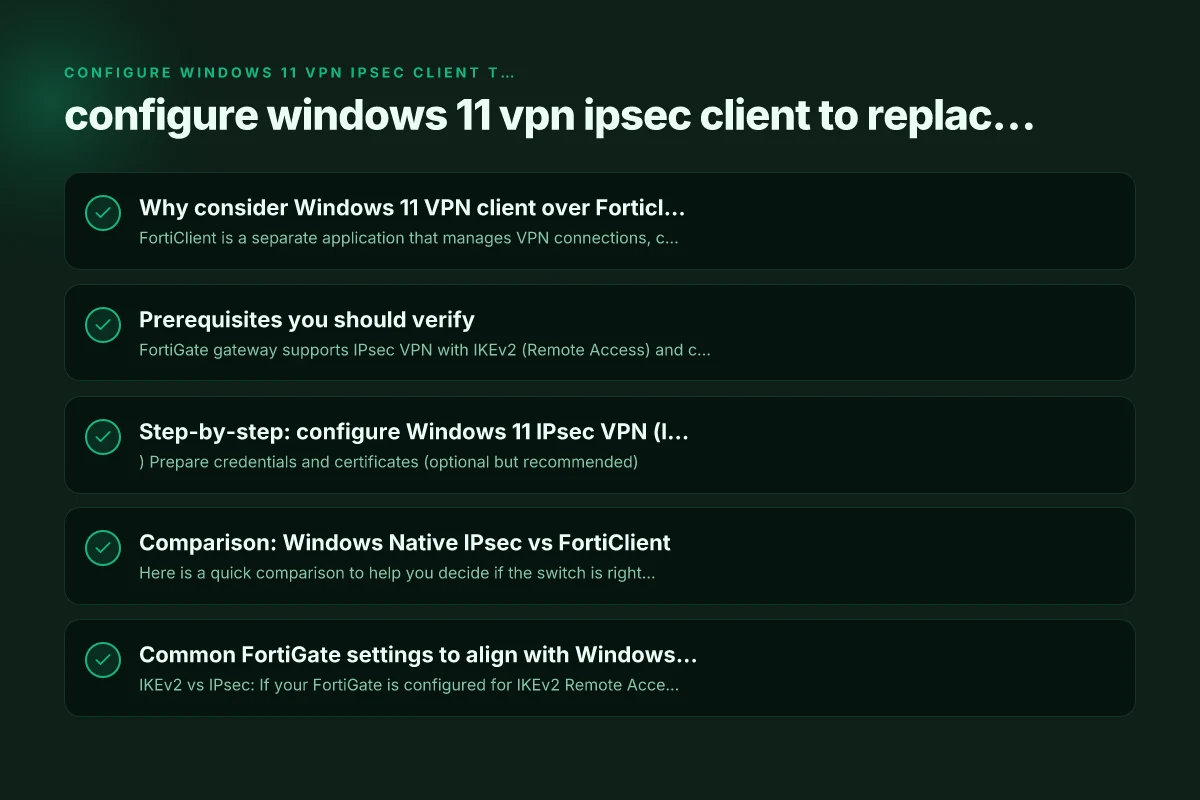
Prerequisites you should verify
- FortiGate gateway supports IPsec VPN with IKEv2 (Remote Access) and certificate-based or pre-shared key authentication.
- If you use certificates, ensure you have the appropriate client certificate installed in Windows and a corresponding root/intermediate CA trusted by Windows.
- Administrative access on Windows 11 to configure network settings and, if needed, to install certificates.
- Any required DNS suffixes, split-tunnel vs full-tunnel preferences, and the gateway’s public IP or FQDN.
Step-by-step: configure Windows 11 IPsec VPN (IKEv2) to match FortiGate
- Prepare credentials and certificates (optional but recommended)
- If the FortiGate is configured for certificate-based authentication, import the client certificate (.pfx/.p12) into the Local Computer or Current User personal store in Windows.
- Ensure the private key is exportable only if your policy allows it. Otherwise, keep it non-exportable.
- Install the CA certificate(s) that chain to the FortiGate server certificate so Windows trusts the gateway.
- Create a new VPN connection in Windows 11
- Open Settings > Network & Internet > VPN.
- Click Add VPN.
- VPN provider: Windows (built-in).
- Connection name: something meaningful like FortiGate-Remote-IKev2.
- Server name or address: the FortiGate VPN gateway public address or FQDN.
- VPN type: L2TP over IPsec with pre-shared key OR IKEv2. For certificate-based setups, choose IKEv2.
- Type of sign-in info: Certificate (if using a client certificate) or User name and password (if using username/password).
- If you choose Certificate, select the appropriate certificate from the drop-down (if available). If asked for credentials, leave empty or supply as required by policy.
- Configure advanced settings (IKEv2 specifics)
- After creating the connection, edit its properties:
- Security tab (or equivalent under Advanced settings).
- Authentication: if your FortiGate uses certificate-based authentication, ensure you have “Certificate-based” or “Certificate” selected. If your gateway uses a pre-shared key, select “Pre-shared key” and enter the key.
- Ensure the underlying IPsec protocol is set to IKEv2 for modern FortiGate configurations.
- If the FortiGate requires specific integrity or encryption algorithms, Windows will generally negotiate defaults. You can leave as default unless your admin specifies otherwise.
- In some FortiGate deployments, the Windows client may require setting “Use preshared key for authentication” (for IPSec) or enabling “Server authentication” to ensure proper certificate validation.
- Set route and DNS behavior (tunnel policy)
- Decide if you want full-tunnel (all traffic through VPN) or split-tunnel (only corporate traffic).
- In Windows, the VPN connection’s advanced settings can influence whether DNS requests are sent over VPN and how routes are pushed. If your FortiGate is configured for split-tunnel, ensure the Windows client mirrors that behavior.
- If DNS suffixes or specific DNS servers are provided by the FortiGate, configure them under the connection’s DNS settings, if relevant.
- Connect and test
- Save and attempt to connect.
- If connecting fails, check event logs (Event Viewer > Applications and Services Logs > Microsoft > Windows > RasClient) for detailed error codes.
- Common issues:
- Certificate trust errors: ensure the CA is installed and trusted.
- Mismatched authentication: ensure FortiGate is using the same method as Windows (certificate vs pre-shared key vs user credentials).
- IP address or DNS resolution problems: validate the FortiGate’s reachable address and DNS settings.
Prerequisites and verifications before migration
| Prerequisite | Windows Native IPsec | FortiClient | Verification / Notes |
|---|---|---|---|
| OS version | Windows 10/11 up-to-date | - | Ensure latest patches |
| Administrative rights | Yes | Yes | Needed for config & certs |
| Certificate authority | PKI trust needed | PKI or FortiGate certs | Import trusted CA |
| FortiGate VPN settings | Know IKEv2, PSK/Cert | Same as FortiGate policy | Align with FortiGate |
| DNS / split-tunnel | Valid routing | Valid routing | Confirm routes reach VPN |
| MFA setup | If used | If used | Configure in respective system |
| Firewall rules | Allow IKEv2 / ESP | FortiGate-friendly | Open ports 500/4500, ESP |
| Client network access | Define allowed subnets | Define same | Consistency required |
| Time synchronization | Accurate time | Accurate time | Kerberos/ cert trust |
Compiled November 2026; check the provider's site for current details.
Comparison: Windows Native IPsec vs FortiClient
Here is a quick comparison to help you decide if the switch is right for you. (Note: your exact gateway configuration may differ.)
| Aspect | Windows 11 IPsec (IKEv2) | FortiClient |
|---|---|---|
| Deployment | Native OS feature; no extra app | Separate application required |
| Certificates | Supported; relies on Windows certificate store | Supported; often simplifies cert management within FortiClient UI |
| Authentication options | Certificate or pre-shared key or user credentials | Certificate, PSK, or username/password depending on config |
| Management | Centralized via Windows settings; slower to manage in large orgs | Rich GUI for FortiGate integration and logging |
| Updates | Part of Windows OS, standard update cadence | Separate app with Fortinet-specific updates |
| Performance | Comparable; minor differences in negotiation defaults | Dependent on FortiClient version and OS integration |
Common FortiGate settings to align with Windows native client
- IKEv2 vs IPsec: If your FortiGate is configured for IKEv2 Remote Access, use IKEv2 in Windows; L2TP/IPsec is less common for certificate-based setups.
- Authentication method: Ensure the FortiGate’s Phase 1/Phase 2 settings support the Windows client’s chosen method (certificate-based or PSK).
- Certificates: If you’re using a client certificate, the FortiGate should be configured to accept certificate-based authentication and map the certificate to a user or group as needed.
- NAT traversal and DNS: Verify whether NAT-T is required and that DNS settings published by FortiGate (if any) are applied to Windows.
- User authentication: If you rely on user credentials, ensure FortiGate’s remote access user accounts are active and the VPN can accept those credentials.
Troubleshooting tips
- If the connection fails during Phase 1, verify the IKE policy on FortiGate matches Windows’ negotiation expectations (encryption, hash, DH group, and life/timeout settings).
- If certificate errors occur, re-import the client certificate and ensure the correct CA is trusted by Windows.
- If DNS leaks occur, verify split-tunnel vs full-tunnel behavior and ensure DNS servers provided by FortiGate are used only when connected.
- Review FortiGate logs for VPN tunnel establishment details, and ensure the firewall policies permit VPN traffic from the client IP to internal networks.
Best practices for a smooth rollout
- Test in a controlled group before wide deployment to catch policy mismatches.
- Document the exact FortiGate settings used for IKEv2, authentication method, and certificate requirements so users can configure Windows 11 consistently.
- Provide users with a simple one-shot guide to import their necessary certificates and create the VPN connection.
Step-by-step: configure Windows 11 IPsec VPN (IKEv2) to match FortiGate
| Step | Action | Windows native | FortiGate reference | Notes |
|---|---|---|---|---|
| 1 | Open VPN settings | Network & Internet → VPN | FortiGate policy name | Use IKEv2 + certificate or PSK |
| 2 | Add a VPN connection | Add VPN | Create matching profile | Use same remote gateway |
| 3 | Authentication | Cert-based / EAP | Same as FortiGate | Mirror method |
| 4 | Server address | VPN gateway IP | FortiGate WAN IP | Use DNS name if available |
| 5 | Client cert | Select certificate | Ensure cert in FortiGate trust | Import if needed |
| 6 | Cryptography | IKEv2, AES128, SHA256 | Align with FortiGate | Mirror SA proposals |
| 7 | Network routes | Add split tunnel / full tunnel | FortiGate route settings | Sync subnets |
| 8 | Firewall rules | Enable IKEv2/ESP | FortiGate policy | Ports: 500, 4500, ESP |
| 9 | Test connection | Connect | Connect | Verify ping to internal hosts |
Compiled November 2026; check the provider's site for current details. Surfshark is making my connection so slow
Final recommendation
If your FortiGate gateway is configured for IPsec VPN with IKEv2 and certificate-based authentication (or pre-shared keys with well-documented policies), Windows 11’s built-in IPsec client offers a solid replacement for Forticlient. It reduces dependency on a separate app, leverages the Windows certificate store for security, and allows standard enterprise management through Windows policies and user profiles. Start by confirming gateway compatibility (IKEv2, certificate or PSK), install any required client certificates, and create the VPN connection in Settings > Network & internet > VPN. Test thoroughly, and you’ll likely achieve a seamless replacement of Forticlient with Windows 11 native VPN.
| VPN | Obfuscation | From / month | Plan | Free plan | Refund | Alipay | UnionPay | Crypto | Website opens in China | Trustpilot | |
|---|---|---|---|---|---|---|---|---|---|---|---|
 ZoogVPN | Turn on manually Shadow | $2.49/mo | 27 months: $59.99 | Yes | 7 days | ✓ | ✓ | ✓ | ✓ | ✓ Yes (2.5 s) | 4.2/5 (195 reviews) |
 NordVPN | Turn on manually Obfuscated Servers / NordWhisper | $3.49/mo | 27 months: $94.23 | No | 30 days | ? | ✗ | ✓ | ✓ | ✗ Blocked | 4.2/5 (51,628 reviews) |
 ExpressVPN | ✓ On by default all servers | $3.00/mo | 28 months: $84 | No | 30 days | ✗ | ✗ | ✓ | ✗ | ✗ Blocked | 4.4/5 (29,706 reviews) |
 Surfshark | ✓ On by default Camouflage, with OpenVPN | See site | See site | No | 30 days | ✗ | ✗ | ✗ | ✓ | ✗ Blocked | 4.3/5 (31,823 reviews) |
 Proton VPN | Turn on manually Stealth, free plan too | $2.99/mo | 12 months: $35.88 | Yes | 30 days | ✗ | ✗ | ✗ | ✓ | ✓ Yes (2.5 s) | 2.1/5 (1,040 reviews) |
 Astrill VPN | Turn on manually StealthVPN / OpenWeb | $12.50/mo | 24 months: $300 | No | See site | ✗ | ✗ | ✗ | ✓ | ✗ Blocked | 1.3/5 (110 reviews) |
 Private Internet Access | Turn on manually Shadowsocks, OpenVPN only | $2.03/mo | 40 months: $81.2 | No | 30 days | ✗ | ✗ | ✗ | ✗ | ✗ Blocked | 4.2/5 (11,033 reviews) |
 CyberGhost | Turn on manually selected servers | $2.19/mo | 28 months: $61.32 | No | 45 days | ✗ | ✗ | ✗ | ✓ | ✗ Blocked | 4.0/5 (24,178 reviews) |
 PureVPN | Turn on manually switch to OpenVPN | $1.69/mo | 60 months: $101.55 | No | 31 days | ? | ✗ | ✗ | ✓ | ✓ Yes (2.6 s) | 4.4/5 (17,994 reviews) |
 AdGuard VPN | ✓ On by default TrustTunnel | $2.99/mo | 24 months: $71.76 | Yes | 30 days | ✓ | ✗ | ✓ | ✓ | Official site blocked; our special link opens (2.3 s) | 4.3/5 (290 reviews) |
 Mullvad | Turn on manually QUIC / Shadowsocks / LWO | $5.61/mo | €5/mo | No | 14 days | ✗ | ✗ | ✗ | ✓ | ✗ Blocked | 3.2/5 (192 reviews) |
 Windscribe | Turn on manually Stealth / WStunnel | $5.75/mo | 12 months: $69 | Yes | See site | ✗ | ✗ | ✗ | ✓ | ✗ Blocked | 4.7/5 (13,355 reviews) |
 StrongVPN | Turn on manually Scramble, OpenVPN TCP | See site | See site | No | 30 days | ✓ | ✗ | ✗ | ✗ | ✗ Blocked | 4.4/5 (2,695 reviews) |
 LightXtreme 闪连 | Not listed | $7.08/mo | 12 months: $84.99 | Yes | 30 days | ✓ | ✓ | ✓ | ✓ | ✓ Yes (2.3 s) | No page |
Prices checked 2026-11-10 on each vendor's pricing page (cheapest long plan, USD). Check the vendor's checkout for the final price.
Obfuscation checked 2026-11-14 on each vendor's site and help center: "on by default" = nothing to set; "turn on manually" = switch protocol or mode in settings; "not listed" = the vendor describes no obfuscation.
Payment methods checked 2026-11-10 on each vendor's payment pages: all 14 take cards and PayPal; ✗ = not listed, ? = the vendor's own pages disagree.
China access: whether the official website opens from mainland China networks (tests the website only, not the VPN connection). Last checked 2026-11-11 04:07 Beijing time.
Trustpilot score and review count checked 2026-11-10.