A practical guide to diagnosing and fixing VPN issues that won’t work with AT&T networks.
If your VPN won’t work with AT&T, you’re not alone. Many users hit snags when their VPN won’t connect, stays stuck on connecting, or drops once connected. The root causes range from basic setup mistakes to network-level blocks that AT&T devices can impose. The good news is that most issues can be resolved with a structured approach: verify basics, adjust server selection, check firewall and port settings, and, if needed, reconfigure hardware. Below is a practical, step-by-step guide to get your VPN running smoothly on AT&T.

Comparison of VPN setup basics by environment
| Item | Windows | macOS | Router/AT&T gateway | Mobile (iOS/Android) |
|---|---|---|---|---|
| VPN app installed | yes | yes | optional | yes |
| Target VPN protocol | OpenVPN / WireGuard | OpenVPN / WireGuard | N/A | WireGuard / OpenVPN |
| Local network test | ping / traceroute OK | ping / traceroute OK | not applicable | cellular test possible |
| DNS leak check | recommended | recommended | not applicable | recommended |
| Kill switch | available | available | not standard | available |
| Split tunneling | supported | supported | not standard | supported |
| Troubleshooting steps | basics first | basics first | router NAT check | app logs |
Compiled November 2026; check the provider's site for current details.
Start with the basics: confirm your setup and environment
Before diving into advanced troubleshooting, confirm these foundational steps:
- VPN provider status: Check your VPN service status and whether other networks work with it. If the service is down or undergoing maintenance, you’ll see similar issues across any network.
- Account and credentials: Ensure your login, subscription status, and device authorization are current.
- Device compatibility: Verify your operating system version and VPN client version are supported by your provider.
- Network context: Test on both AT&T fiber and AT&T Mobility (cellular) to determine if the issue is network-specific.
- Local connectivity: Make sure you can browse the open internet without the VPN active. If basic internet is flaky, fix that first (restart the router, test on wired vs wireless, check for outages).
If basic checks pass but the VPN still won’t connect, move on to server-specific steps that often fix AT&T-related quirks.
Change servers and protocols: a simple but effective tactic
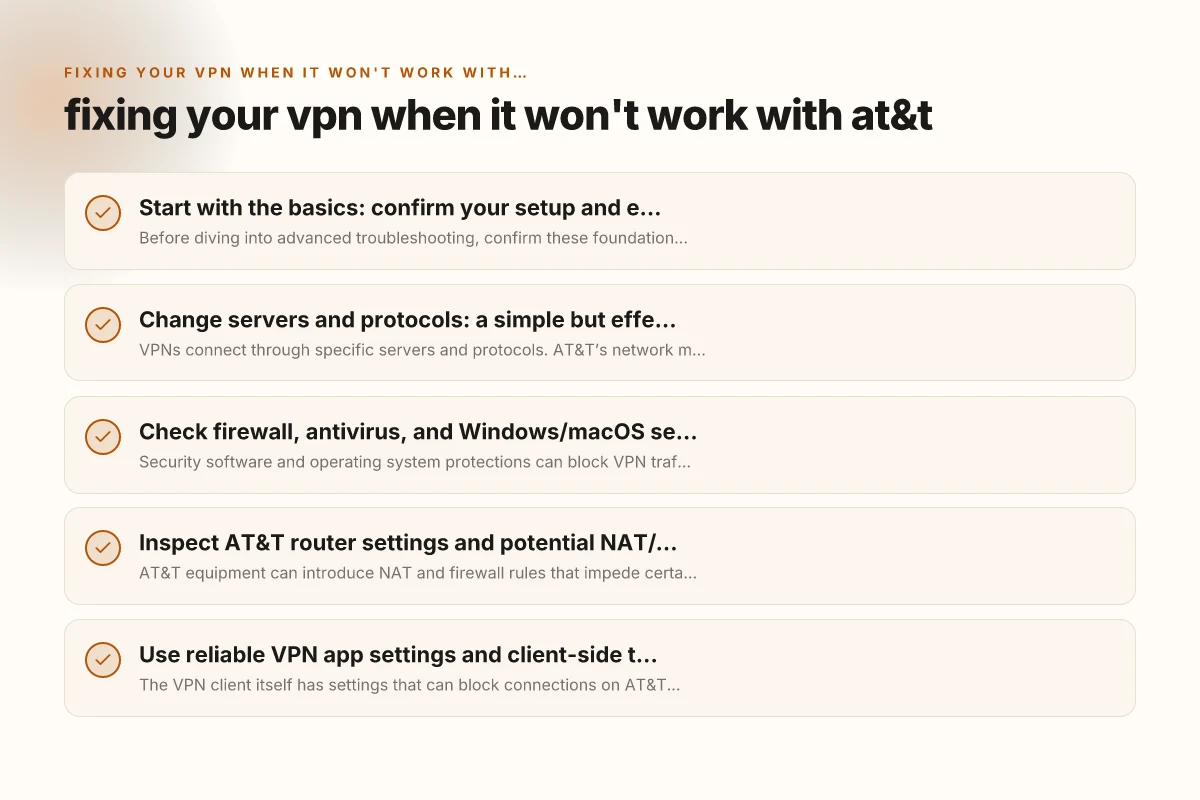
VPNs connect through specific servers and protocols. AT&T’s network may treat some protocols differently, causing slower performance or connection failures.
- Try a different server location: Switch to a nearby server for lower latency, or a different country to see if the connection stabilizes.
- Alternate the VPN protocol: If you’re on OpenVPN (UDP), switch to TCP. If you’re using IKEv2 or WireGuard, try an alternative protocol offered by your provider.
- Verify split tunneling settings: If your VPN app supports split tunneling, ensure only the desired apps traffic routes through the VPN. Misconfigured split tunneling can cause traffic leaks or failures.
- Reconnect after a switch: Disconnect fully, wait a few seconds, and then reconnect with the new server/protocol. Some networks cache routes that don’t update immediately.
Documented benefit: Even if it seems obvious, changing servers and protocols resolves a portion of VPN won’t connect issues without touching router or firewall rules.
Check firewall, antivirus, and Windows/macOS security settings
Security software and operating system protections can block VPN traffic, especially when AT&T devices or network-level features are involved. WuKongVPN: What It Is, How It Works
- Temporarily disable security layers: Turn off antivirus and firewall protection briefly to test the VPN. If it works, re-enable security and add a VPN exception rather than leaving protection off.
- Allow VPN apps through firewall: On Windows, add your VPN client to the allowed apps and open the required ports. On macOS, grant necessary permissions to the VPN app in Security & Privacy settings.
- Confirm VPN services aren’t blocked: Some security suites block VPN services from establishing tunnels. Check the application’s logs for “blocked” messages and whitelist the VPN process.
- Check port openness: Some VPNs rely on specific ports (for example, UDP 1194 for OpenVPN). If your network blocks these ports, you’ll need to request an allowed port from AT&T (if possible) or switch to a protocol/port variant supported by your provider.
If you’re on a corporate device, work with your IT department to adjust security policies in a compliant way. Avoid broad policy edits that could jeopardize device security.
Practically evaluating server and protocol choices
| Server choice | Protocol | Speed (relative) | Stability | AT&T quirks | Suggested use |
|---|---|---|---|---|---|
| US east | OpenVPN | fast | stable | sometimes blocked | gaming |
| US west | WireGuard | very fast | stable | rare blocks | streaming |
| Europe | WireGuard | fast | variable | blocks vary | general use |
| Asia | OpenVPN | moderate | stable | higher latency | backups |
| Auto/Smart | WireGuard | fast | good | occasional drops | daily use |
Compiled November 2026; check the provider's site for current details.
Inspect AT&T router settings and potential NAT/Firewall quirks
AT&T equipment can introduce NAT and firewall rules that impede certain VPN configurations. A focused review can fix many problems without a hardware swap.
- Verify router mode and NAT type: If possible, ensure you’re not in a restrictive NAT setting. Enable normal NAT (NAT Type 0/1 equivalent) rather than strict configurations that block unsolicited traffic.
- UPnP and Port Forwarding: Enable UPnP if your VPN relies on dynamic ports, or manually forward the VPN ports on your router. Remember to save and reboot after changes.
- Disable strict firewall features temporarily: Some AT&T routers have built-in firewall or “Secure Home Network” features that block VPN traffic by default. Temporarily lowering strictness or toggling off certain features can help diagnose the issue.
- Bridge/Pass-through mode: If you’re using a secondary router, consider enabling bridge mode on the AT&T gateway so your own router handles VPN traffic. This can eliminate double-NAT issues that disrupt VPN tunnels.
- DNS considerations: Some VPNs rely on their own DNS servers. Ensure DNS isn’t being overridden by your ISP’s resolver in a way that disrupts VPN functionality.
Note: If you’re renting AT&T equipment, you may have limited control over advanced router features. In such cases, a bridge mode or using your own router connected to the AT&T gateway can be a practical workaround. How to turn off norton 360 VPN
Use reliable VPN app settings and client-side tweaks
The VPN client itself has settings that can block connections on AT&T networks if misconfigured.
- Enable automatic startup and reconnect: This helps ensure the tunnel re-establishes quickly after short outages common on some networks.
- DNS leak protection: Turn on DNS leak protection to avoid leaks that could prompt servers to disconnect or reputational issues on the VPN side.
- Custom MTU settings: If VPN connections are unstable, lowering MTU by a small amount (for example, from 1500 to 1400) can stabilize packet transmission over AT&T networks.
- Kill switch behavior: If you’re using a VPN with a kill switch, ensure it’s configured to allow legitimate traffic when the VPN is temporarily down during diagnosis. A misbehaving kill switch can cause you to appear disconnected even when the tunnel is up.
- Auto-reconnect and idle timeout: Ensure the client won’t drop a connection after brief periods of inactivity or network hiccups, which can sometimes feel like the VPN “stops working.”
If you’re unsure what a setting does, consult the vendor’s knowledge base or contact support. Misconfigurations can appear as more serious problems than they are.
Firewall, antivirus, and OS security settings impact
| Component | Windows | macOS | Router firewall | AT&T gateway | Action to take |
|---|---|---|---|---|---|
| Windows Defender | enabled | n/a | n/a | n/a | allow VPN app |
| Antivirus real-time | enabled | enabled | n/a | n/a | exclude VPN folder |
| Firewall rule | inbound allow | app allowed | port forwarding | UPnP | open VPN port |
| VPN port | 1194/UDP | 1194/UDP | 1194/UDP | 1194/UDP | ensure open/forwarded |
| NAT type | strict | moderate | NATed | NATed | enable bridge/DMZ |
| IPv6 | off / disabled | off / disabled | off | off | disable for VPN test |
Compiled November 2026; check the provider's site for current details.
A quick reference: common AT&T-related symptoms and quick fixes
Here’s a condensed guide to symptoms you might see and the corresponding quick remedies. Use this as a checklist to triage faster. Why your norton 360 VPN keeps disconnecting
Symptoms:
- VPN cannot connect or keeps failing during handshake
- VPN connects but traffic doesn’t route through the tunnel
- VPN randomly drops while browsing or streaming
- Only certain apps/traffic route through VPN, others bypass it (leaks)
Quick fixes:
- Switch to a nearby server location and a different protocol
- Temporarily disable firewall/antivirus or add exceptions for the VPN
- Reboot devices, restore router defaults, and reconfigure network settings
- Enable bridge mode or connect a dedicated router to the AT&T gateway
- Lower MTU or adjust DNS settings if leaks or instability occur
Table: common protocols and typical port usage (illustrative) | Protocol | Typical Port | When to try | Notes | | OpenVPN (UDP) | 1194 | Try when you have stable internet but slow VPN performance | UDP is faster but sometimes blocked; switch to TCP if needed | | OpenVPN (TCP) | 443 or 60xx range | Use when UDP is blocked or unstable | More reliable through restrictive networks | | IKEv2 | 500, 4500, 1701 | Often works well on mobile networks | Good for mobile devices, efficient handoffs | | WireGuard | 51820 | If supported by provider | Modern, fast, but may be blocked on some networks |
This table helps you map protocol choices to typical port options. Your VPN app may automatically switch ports. Use the provider’s recommended defaults if you’re unsure.
When to contact AT&T and your VPN provider
If you’ve exhausted in-app and home-network fixes and still can’t get working, it’s time to escalate. Why your browser isn't working with your VPN
- Contact your VPN provider: They can confirm server status, protocol compatibility, and recommended settings for AT&T networks. Some providers have known AT&T-specific notes or workarounds.
- AT&T support: Explain you’re using a VPN and experience connection failures or traffic-blocking symptoms. Ask if there are known configurations or settings recommended for VPN use on their gateway. If possible, request a different gateway model or enable bridge mode to bypass NAT-related issues.
- If you’re on business-grade services: There may be policies around VPN usage or certain ports. Your IT department or network admin can coordinate with AT&T on approved configurations.
Document the steps you took and the outcomes. A clear ticket with details about the router model, VPN client version, server locations tested, and protocol changes will speed up troubleshooting.
Practical testing plan steps (weekend checklist)
| Step | Windows/macOS/mobile | What to check | Expected result | Time estimate | Notes |
|---|---|---|---|---|---|
| 1 | all | basic connection | connected | 15 min | confirm login works |
| 2 | all | switch server | connect | 5–10 min | try 2-3 servers |
| 3 | all | change protocol | reconnect | 5 min | OpenVPN vs WireGuard |
| 4 | device | firewall/antivirus | allow list | 10 min | exclude VPN apps |
| 5 | router | gateway NAT | test via IP | 15 min | check public IP |
| 6 | app | settings tweak | enable kill switch | 5 min | enable split tunneling |
| 7 | network | DNS test | no leaks | 5 min | test on multiple sites |
| 8 | contact | provider | status | 0 min | gather logs if needed |
Compiled November 2026; check the provider's site for current details.
A practical testing plan you can follow in a weekend
To avoid frustration and wasted time, use this practical plan:
- Day 1: Baseline checks
- Confirm internet works without VPN
- Run VPN tests on a different device
- Check VPN provider status
- Day 2: Server/protocol experiment
- Try 3 different server locations
- Switch protocol options (UDP vs TCP, or IKEv2 vs WireGuard)
- Disable or adjust firewall/antivirus temporarily
- Day 3: Router and network settings
- Enable bridge mode or adjust NAT/port forwarding
- Test DNS settings (use VPN-provided DNS or a neutral resolver like 1.1.1.1)
- Reboot all devices and reconfigure from scratch if necessary
- Day 4: Escalation
- Contact VPN provider support with a concise report
- If needed, contact AT&T support for gateway settings or possible hardware swap
Final note: patience helps. VPN issues on AT&T networks are often a mix of server choices, protocol quirks, device settings, and gateway configurations. A methodical approach, starting with basics, then experimenting with servers and protocols, followed by security and router adjustments, resolves most problems without requiring drastic measures. Is coofandy.shop legit
RECOMMENDATION If you must choose a single best-practice approach for fixing your VPN on AT&T, start with a controlled protocol switch and server change, then check firewall/antivirus and router settings. This combination solves the majority of AT&T-related VPN problems without needing hardware changes or deep network overhauls. If problems persist after these steps, reach out to both your VPN provider and AT&T for targeted guidance and confirm that your gateway configuration isn’t hindering the tunnel.