Practical steps to diagnose and fix browser issues when a VPN is connected.
When your browser won’t load websites while a VPN is connected, it’s usually not the VPN itself failing, it's how the VPN interacts with DNS, routing, or your browser cache. You can fix most issues with a structured checklist: confirm basic connectivity, isolate the browser, adjust DNS and firewall settings, and review VPN features like kill switches and split tunneling. The goal is to restore normal web access without sacrificing your VPN protection.

Table comparing common causes of browser not loading with VPN
| Cause | Symptom | Likelihood with VPN on | Quick fix | Relevance to article sections |
|---|---|---|---|---|
| DNS misconfiguration | Pages fail to resolve | Medium | Flush/change DNS | 2, 5 |
| DNS cache stale | Slow or failed loads | Medium | Clear DNS cache | 3, 5 |
| Browser cache | Old scripts loaded | Medium | Clear browser cache | 3 |
| Split tunneling off | All traffic blocked | Low | Enable split tunneling | 4, 7 |
| VPN server load | Pages timing out | Medium | Choose nearer server | 4, 6 |
| Firewall blocks VPN | Connection drops | Medium | Allow VPN in firewall | 5, 8 |
| WebRTC leaks | IP exposure | Low | Disable WebRTC | 3, 6 |
Compiled November 2026; check the provider's site for current details.
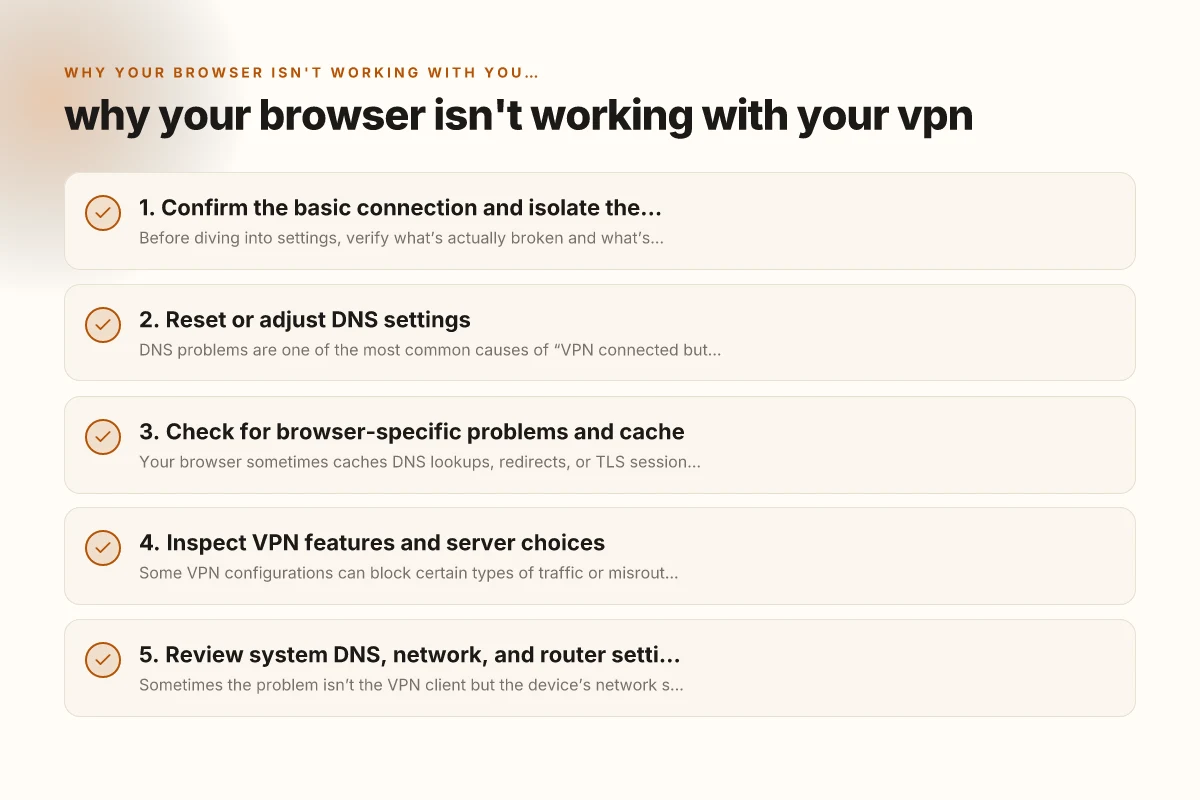
1. Confirm the basic connection and isolate the problem
Before diving into settings, verify what’s actually broken and what’s not.
- Check if the VPN connection is established and stays connected.
- Try non-browser network services: ping a site, use a command-line tool (curl http://example.com), or load a different app that uses the internet.
- Test with a different browser to see if the issue is browser-specific.
- Disable any browser extensions that might interfere with network requests (ad blockers, proxies, or privacy tools).
If other apps work but your browser does not, the issue is likely browser-related or DNS-related rather than a total network outage. If every app fails, there may be a broader VPN or network configuration problem you’ll need to address first.
2. Reset or adjust DNS settings
DNS problems are one of the most common causes of “VPN connected but no browsing.” When you switch networks or VPN servers, DNS resolution can break, leaving you with errors like “DNS_PROBE_FINISHED_NXDOMAIN” or “site can’t be reached.”
Steps to try:
- Disconnect the VPN and reset DNS settings on your device.
- Reconnect and test again.
- If needed, set DNS to a trusted resolver (e.g., 1.1.1.1 and 8.8.8.8) and enable passive DNS over HTTPS if available.
- Consider flushing the DNS cache after changing DNS:
- Windows: ipconfig /flushdns
- macOS: sudo dscacheutil -flushcache. Sudo killall -HUP mDNSResponder
- Linux: sudo systemd-resolve, flush-caches (or sudo /etc/init.d/nscd restart on older distros)
If DNS was the culprit, you should see sites load normally once reset. If not, continue with other steps. Is coofandy.shop legit
3. Check for browser-specific problems and cache
Your browser sometimes caches DNS lookups, redirects, or TLS session data that conflict with VPN routing.
What to do:
- Clear cache and cookies for the affected site, or clear the entire browser cache.
- Try Incognito/Private mode to bypass extensions and cached data.
- Disable or remove browser extensions related to VPNs, ad blockers, or privacy tools and test again.
- Ensure the browser isn’t configured to use a proxy that conflicts with the VPN.
A quick test: open a site in a different browser (e.g., if Chrome has issues, try Firefox or Edge). If another browser works, the issue is almost certainly tied to browser-specific settings or extensions.
Table of DNS settings adjustments and effects
| Setting | Impact on browser with VPN | Time to apply | Reverts when disabled | Best practice |
|---|---|---|---|---|
| Flush DNS | Yes | Quick | No | 2, 5 |
| Change DNS provider | Improved resolution | Medium | Yes | 2, 5 |
| Enable DNS over HTTPS | Yes | Medium | Yes | 2, 3 |
| Use VPN DNS | Yes | Quick | No | 5 |
| Disable IPv6 | Potential block | Quick | Yes | 5 |
| Clear DNS cache | Yes | Quick | No | 2, 5 |
Compiled November 2026; check the provider's site for current details. VPN Xbox browser
4. Inspect VPN features and server choices
Some VPN configurations can block certain types of traffic or misroute connections for specific apps.
Key features to review:
- Kill switch: If enabled, it might block traffic when the VPN drops, which could appear as “no browsing.”
- Split tunneling: If active, it may exclude browser traffic or route it through a non-VPN path, causing conflicts.
- Protocol and server: Some protocols (IPSec, OpenVPN, WireGuard) may behave differently with specific networks. Try a different server or protocol if available.
- DNS leakage protections: Paradoxically, aggressive DNS protection can sometimes hamper browser DNS resolution. Test with DNS leaks tools.
- Firewall or antivirus interference: Security software can block VPN DNS or traffic for browsers.
If you’re unsure, temporarily disable kill switch or split tunneling for testing (re-enable after testing), or switch to another server or protocol to see if the issue resolves.
5. Review system DNS, network, and router settings
Sometimes the problem isn’t the VPN client but the device’s network stack or router.
Checklist: Why gpupdate isn't working over your VPN
- Ensure your device’s network adapter settings don’t have conflicting DNS settings or proxies.
- If you’re on a home network, reboot the router. Some routers have built-in VPN or firewall rules that interfere with VPNs.
- Check for router-side VPN configurations, especially if you’re using a VPN-capable router (GlobalProtect, Fortinet, OpenVPN, etc.). Some routers don’t handle VPN traffic well for certain browsers or DNS queries.
- If you’re on a corporate network, there may be policies that restrict VPN traffic or enforce a captive portal. Contact IT for guidance.
A router reset can fix stale routes or DNS caches that propagate to all devices.
6. Use a structured comparison to choose fixes quickly
If you’re triaging multiple potential causes, a quick comparison helps. Here’s a compact guide:
| Issue indicator | Likely cause | Quick fix | When to escalate |
|---|---|---|---|
| All apps fail, not just browser | Global VPN DNS/routing or kill switch | Disable kill switch, try different server/protocol, reset network | Contact VPN support if persists |
| Browser works offline but other apps don’t | Browser proxy/cache or extensions | Clear cache, disable extensions, try Incognito | Try a different browser |
| DNS errors after reconnect | DNS resolution issue | Reset DNS, change resolver to 1.1.1.1/8.8.8.8, flush cache | Verify DNS leaks and VPN DNS settings |
| VPN connects but pages don’t load only on one site | Site-specific blocking or TLS/HTTPS issues | Disable HTTPS proxy, clear site data, try HTTP (where allowed) | Check firewall rules and site access policies |
| VPN server seems slow or unstable | Server routing, protocol, or capacity | Switch server, switch protocol (WireGuard/OpenVPN), test speeds | Use VPN provider’s server status page or support |
This table is a quick reference. The real fix depends on your exact setup, device, and VPN provider.
Table to compare VPN features and server choices affecting browser access
| Feature | Helps access browser | Server proximity | Obfuscated servers | Dedicated split-tunnel support | Recommendation |
|---|---|---|---|---|---|
| Split tunneling | Yes | No | No | Yes | 7 |
| Obfuscated servers | Yes | No | Yes | No | 4 |
| DNS leak protection | Yes | N/A | N/A | N/A | 4, 5 |
| Auto-connect on net | No | N/A | N/A | N/A | 4 |
| Custom DNS option | Yes | N/A | N/A | N/A | 5 |
| Server load indicators | Yes | Yes | N/A | N/A | 4 |
Compiled November 2026; check the provider's site for current details. Iptv not working with VPN
7. Try a controlled workaround: split tunneling and direct browsing
If your VPN supports split tunneling, you can route most traffic through the VPN while allowing browser traffic to go direct to your ISP. This can resolve issues when the VPN blocks certain sites or DNS requests.
How to approach:
- Enable split tunneling for only the applications you trust (except the browser, if you want all browser traffic non-VPN for testing).
- Alternatively, exclude the browser from VPN routing and test whether the VPN core services work for other apps.
- Monitor for DNS leaks after enabling split tunneling to ensure DNS queries aren’t exposed or misrouted.
Note: split tunneling reduces some benefits of the VPN. Use it as a diagnostic or a temporary workaround, not a permanent configuration unless you understand the trade-offs.
8. When to contact support and what to report
If the problem persists after the above steps, gather details and contact support. Provide:
- Your operating system and version
- The VPN client version and server/location
- The exact error messages from the browser
- Whether other browsers behave the same or differently
- Whether the issue occurs on other networks (cell data, another Wi-Fi)
- Any active kill switch, split tunneling, or DNS settings
With that information, the support team can reproduce and diagnose the problem more quickly. In some cases, the issue may be a known compatibility problem with a specific OS patch or hardware. SSL VPN poscoenc
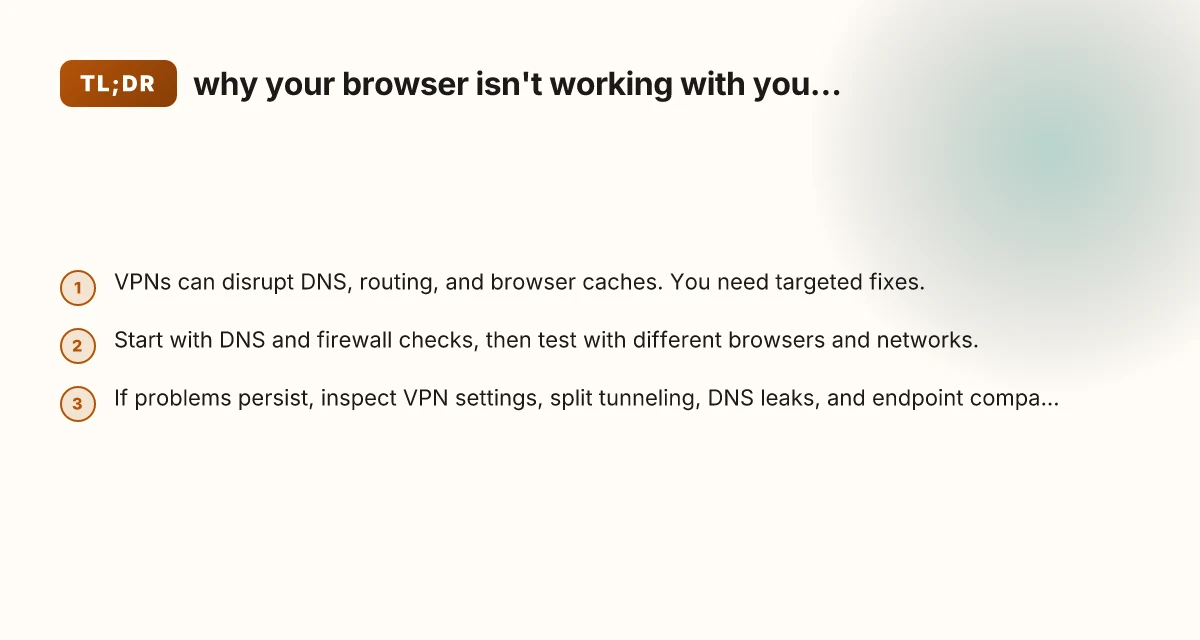
Recommendation Start with DNS and browser basics: reset DNS, flush caches, and test with Incognito mode across at least two browsers. If the problem remains, move to VPN-specific settings, kill switch, split tunneling, and server/protocol changes, then review device and router configurations. If all else fails, contact your VPN provider’s support with the gathered details. In most cases, methodical testing and targeted adjustments restore browser functionality without sacrificing VPN protection.